


Selecting Part Choices
In the Part Choices region of the Components panel, there is a link to a database that provides up-to-date manufacturer price and availability information directly from hundreds of global suppliers.
When you create a new or edit an existing component, you can use ready-made components with parameters and models from the Octopart database.
Tip: Part Choices is located in the Details region of the Components panel. If the Details section is not open, click  .
.
The Part Choices region can be empty or consist of one or more references. Entries in this section were added to components in Altium when transferring and migrating the project library; however, you can always update or correct entries. Part choices can be used and added to the BOM document.
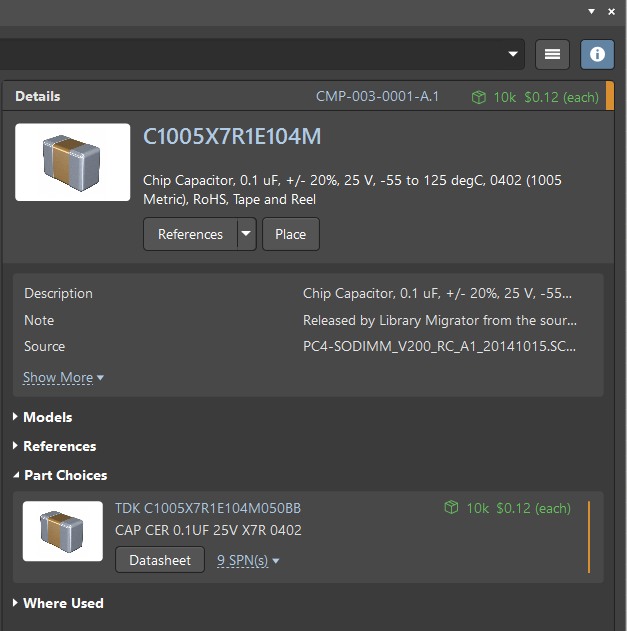
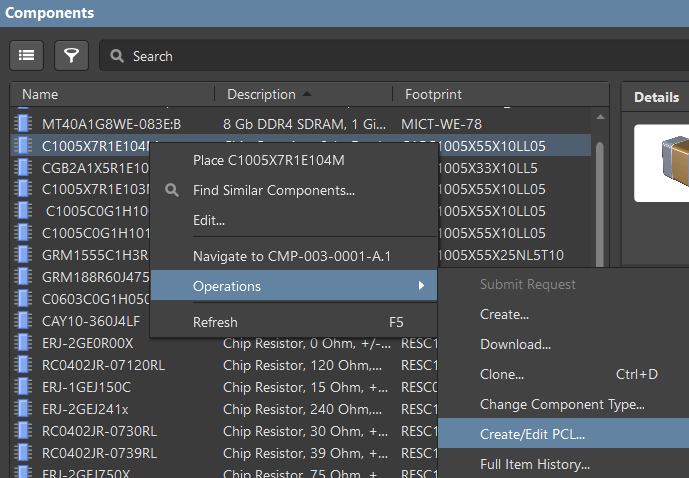
 .
.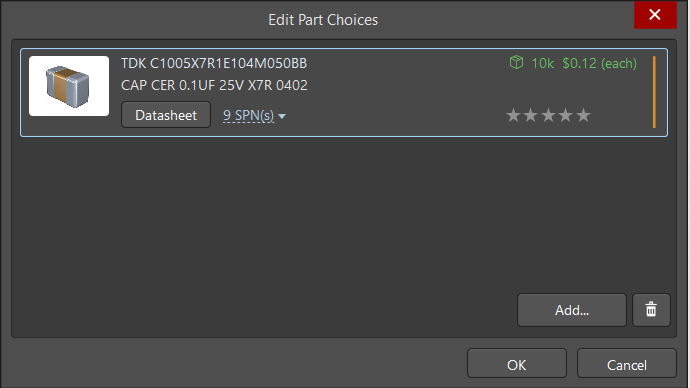
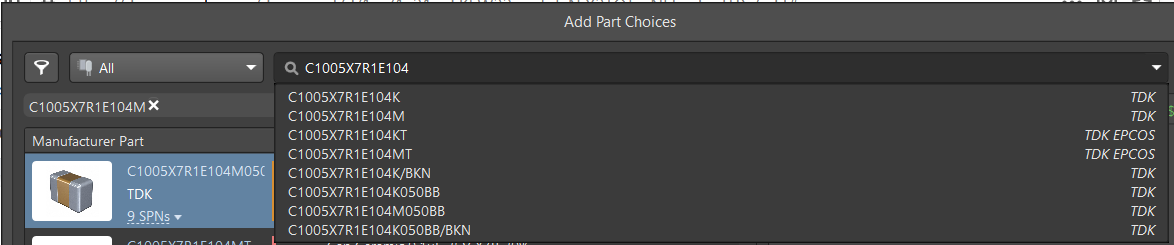
To add a new entry, click the Add button. The Add Part Choices dialog opens.
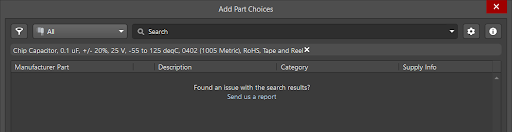
Tip: The search filter already contains text from the parameters depending on the setting on the Data Management - Parts Providers page of the Preferences dialog, as explained below.
We recommend reserving one of its parameters for the part choice search when creating a component. It can be Name, Description, or one of the user parameters.
 at the top right of the Add Part Choices dialog then select Parts Providers Preferences to open the Data Management - Parts Providers page of the Preferences dialog.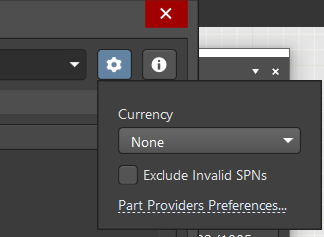
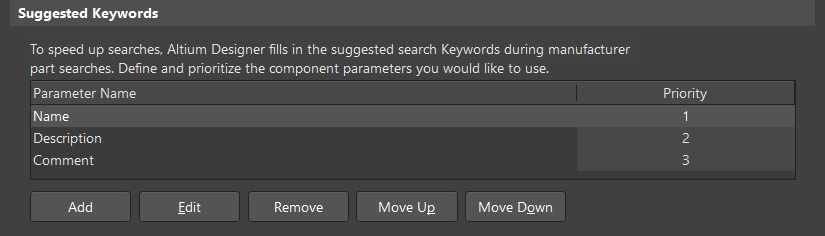
In the Suggested Keywords region, there are three default options for manufacturer part searches: Name, Description, and Comment. You can set the priority by selecting a Parameter Name then click Move Up or Move Down to change the priority. Use the additional buttons below the region to Add new entries, or Edit or Remove current entries. For example, in the image below, we have set the highest priority for the Name parameter.
 to open the Details region, which displays parameters for that component.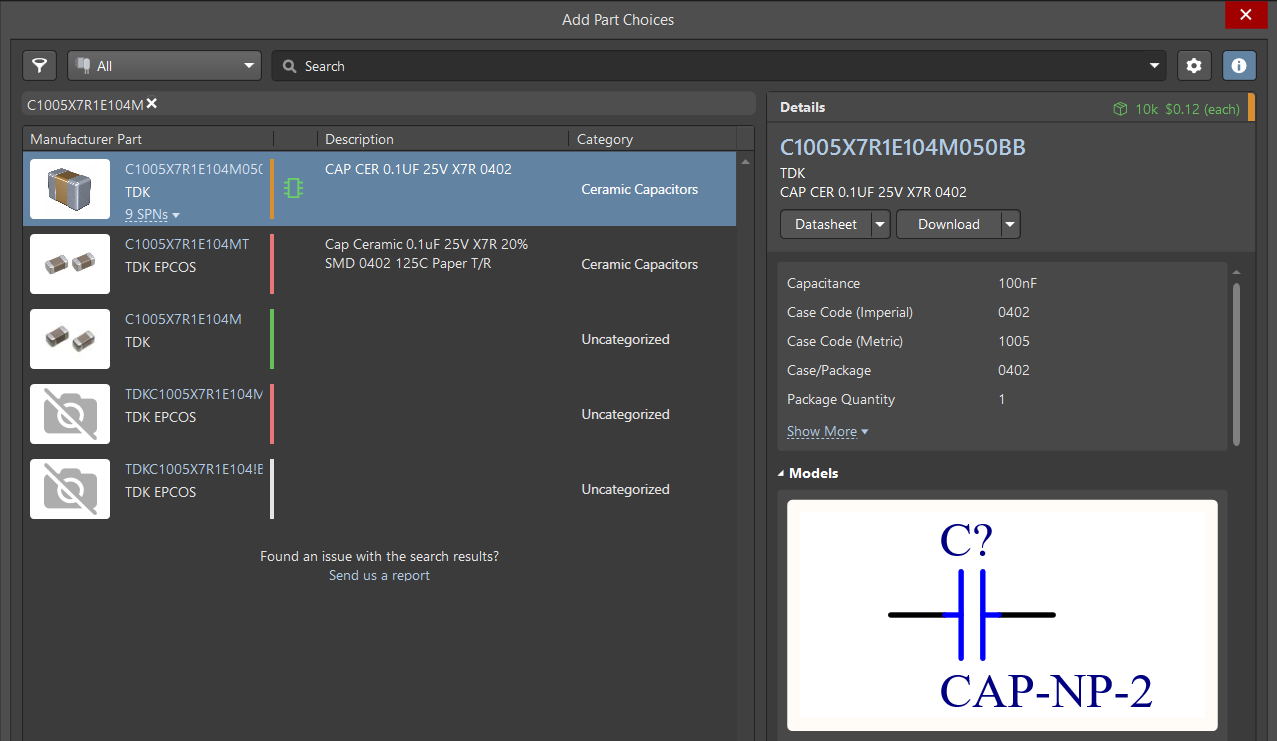
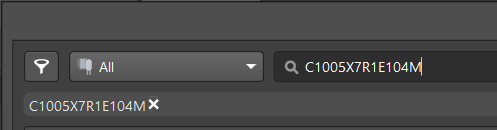
When you begin entering text in the Search field, you will be offered suggestions in a drop-down.
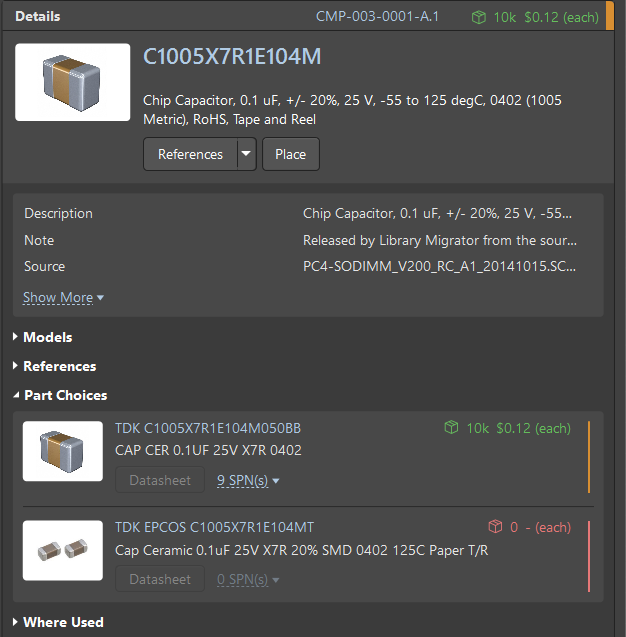
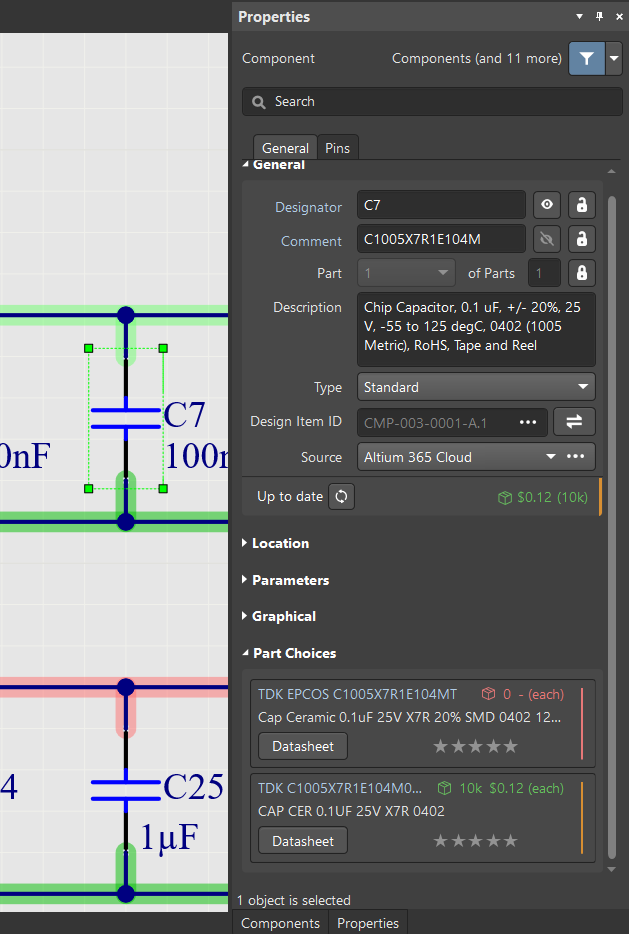
In the Components panel, the component will include two part choice entries.
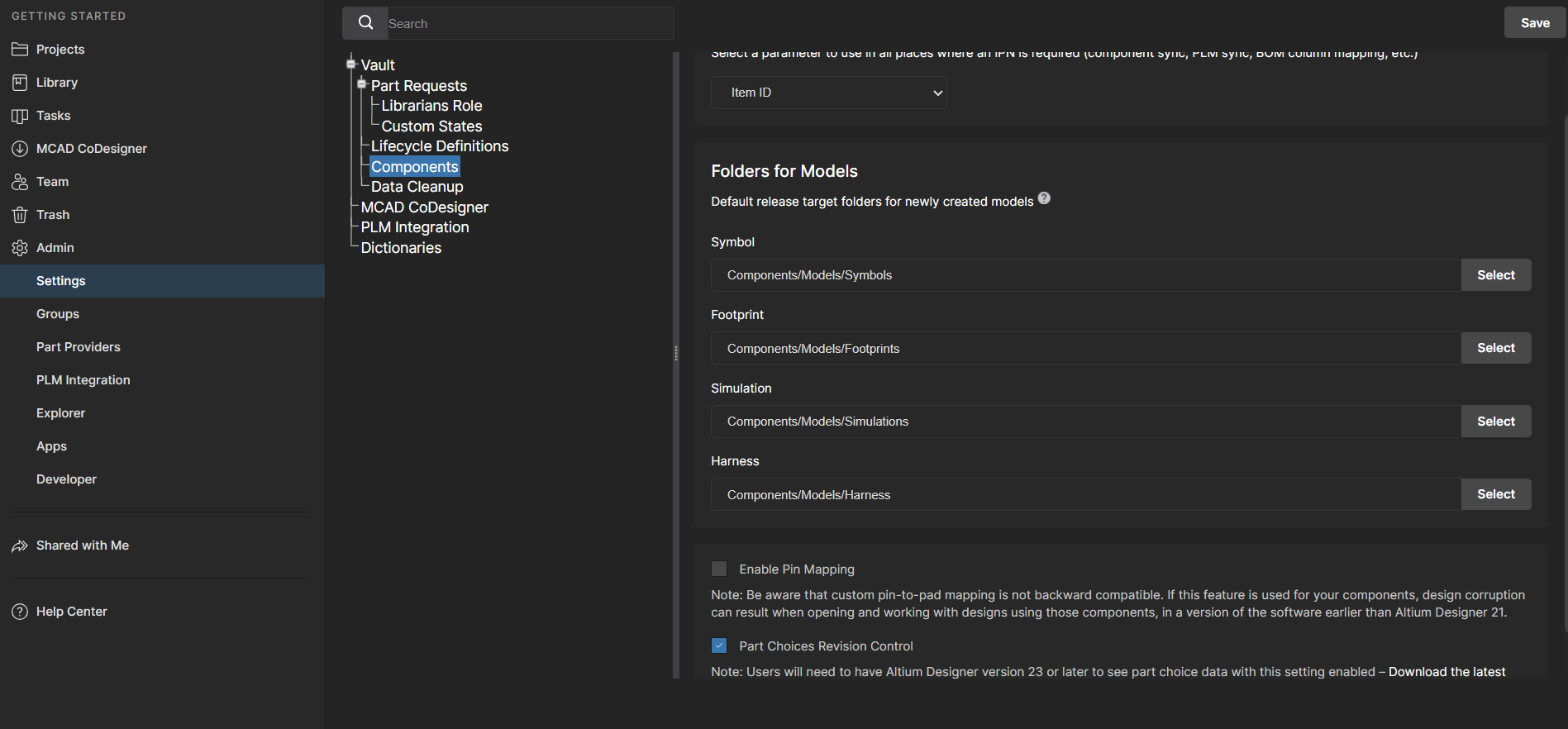
To create a new component revision with an updated part choice, enable Part Choice Revision Control on the Admin » Settings » Vault » Components page in the web browser. Otherwise part choice changes will not be reflected in the component history.
Next, modify a component's Part Choice List using the controls in the Part Choices editor region, then save the component back to the Workspace as a new revision.
- When multiple components are selected in the list in the Components panel, the Create/Edit Part Choices command from the right-click Operations sub-menu will open the Component Editor in the Batch Component Editing mode.
- When part choice revision control is enabled, placed components do not automatically receive Part Choice List updates. To update them, select the component in a schematic, ActiveBOM, or Item Manager, and change it to the latest revision in the Properties panel.
- Part choice revision control requires Altium Designer 23 or later. Users of earlier versions cannot view or edit Part Choice Lists when this feature is enabled.
