


Order Your Parts
With blocking issues resolved, you can set up your suppliers and place the order.
Workflow: Set Up Favorite Suppliers
Configure which distributors you prefer before ordering. This makes BOM Portal prioritize your established vendor relationships when calculating costs and availability.
1. Open BOM Settings. Click the More menu (...) in the top-right corner of your BOM view, then select BOM Settings. If you're already in the Supply Chain tab, click ☆ Favorite Suppliers directly.
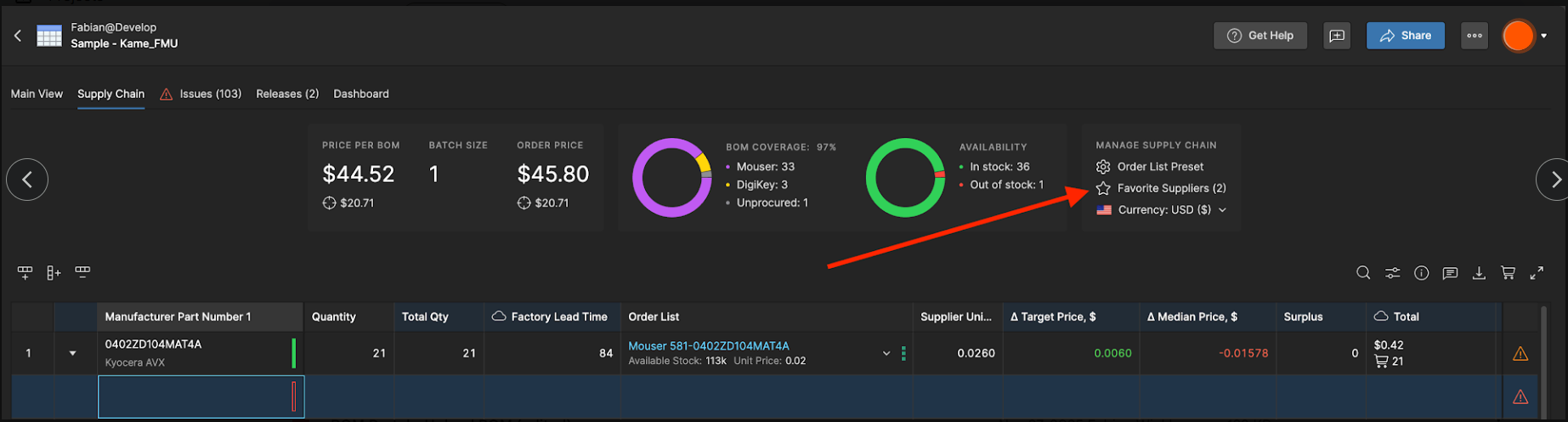
2. Select your preferred distributors. You'll see all available suppliers (Mouser, Farnell, Newark, Digi-Key, Arrow, and others) with their estimated BOM coverage. Check the ones you buy from and uncheck the rest. Your selections determine which suppliers appear in pricing calculations and order lists.
Missing a supplier? Use Configure Available Suppliers to set the allowed suppliers at the Workspace level. From there, Configure Custom Prices for a Supplier lets you pull your negotiated pricing via API key for supported suppliers.
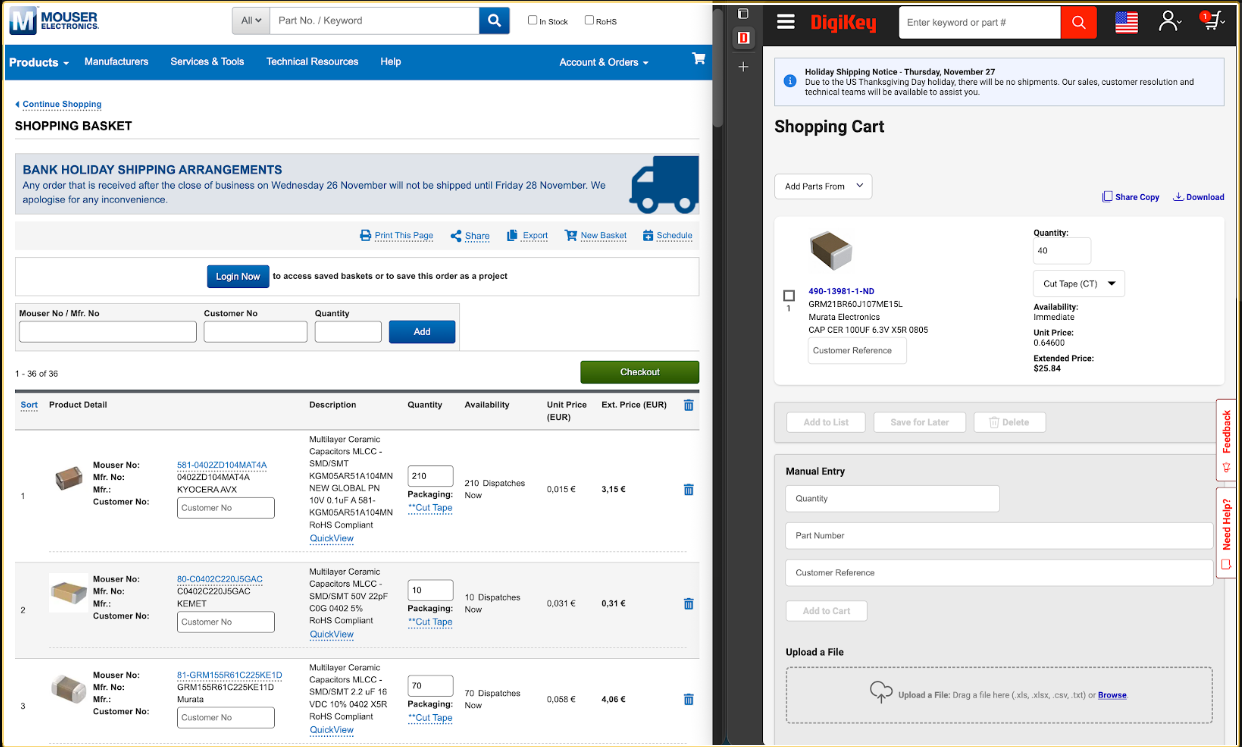
3. Save. Click Save. BOM Portal now prioritizes these suppliers for pricing, availability, and order recommendations. You can change this anytime as your vendor relationships evolve.
Tune the order list for cost or convenience. In the Supply Chain tab, Order List Preset lets you compare sourcing strategies against your production quantity, from Single Order for the lowest total cost through to specific suppliers, which reduces the number of separate orders you place.
Workflow: Order Your BOM with Octocart
Once suppliers are selected, place orders directly through the Octocart integration, which pushes your order list to each supplier's checkout page.
Octocart currently supports DigiKey, Mouser, Newark, and Online Parts.
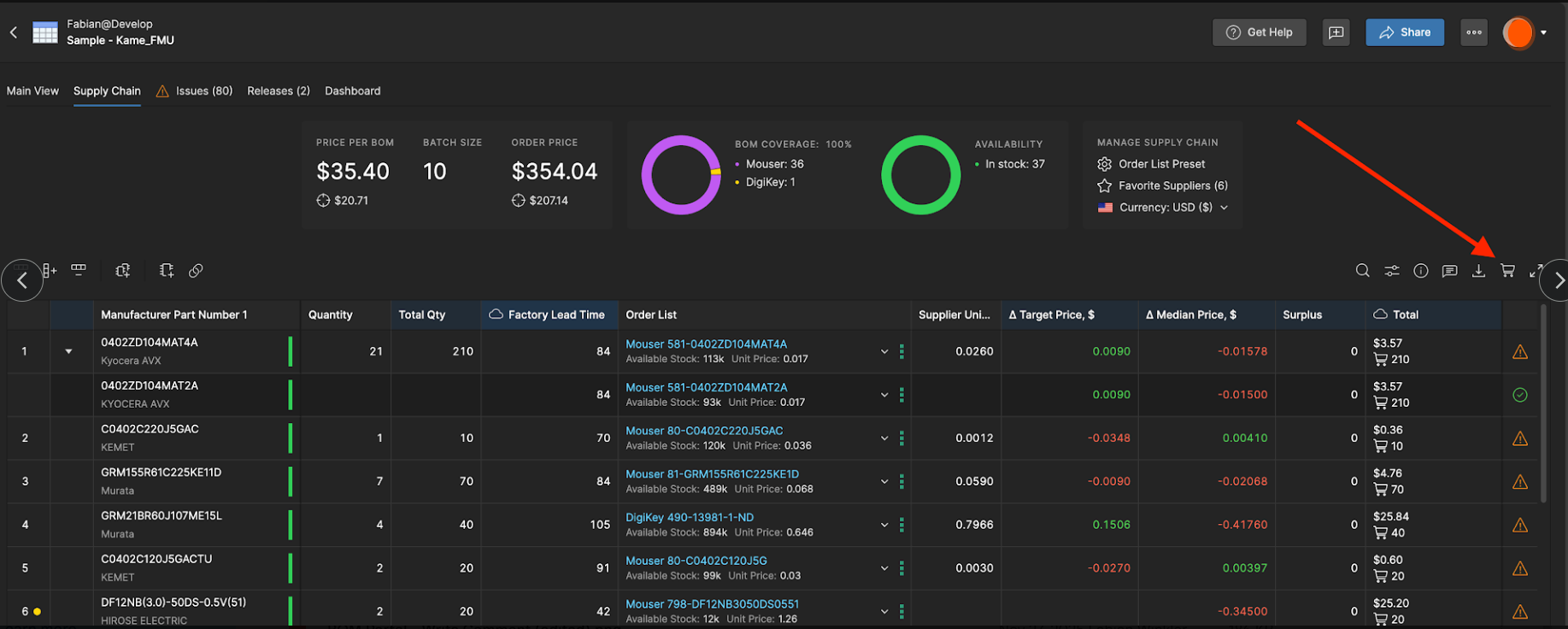
1. Open Octocart. Select the shopping cart icon in the top right, above the parts table.
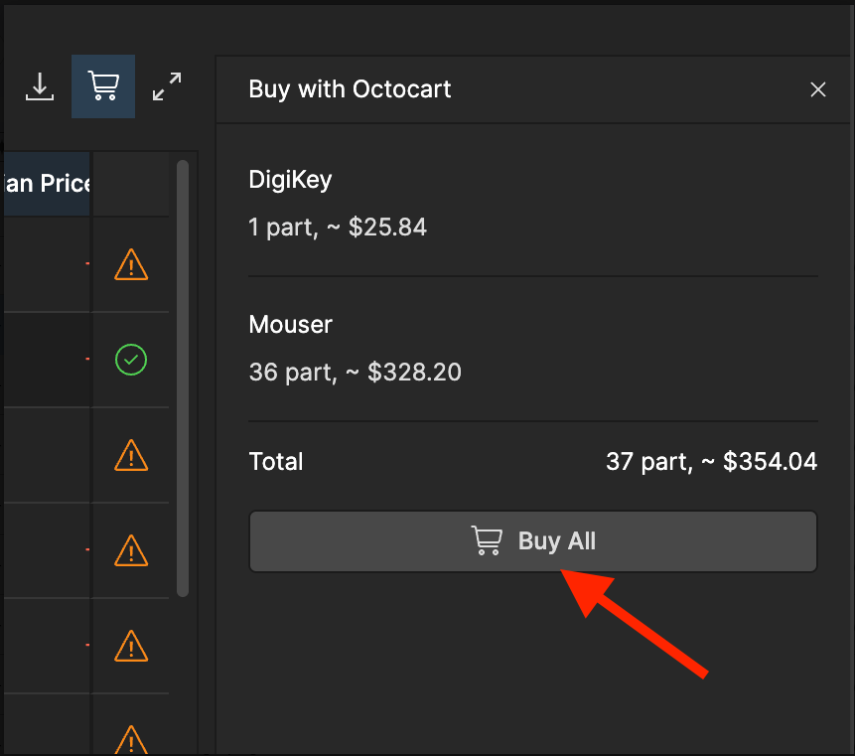
2. Review and buy. Check the suppliers and pricing listed, then click Buy All. Every supported supplier page opens in a new browser tab with your parts already in the cart, ready to purchase.
If a Part Is Out of Stock
When parts show zero or insufficient availability from your preferred suppliers, source them from another distributor.
1. Filter to Insufficient Stock. In the Supply Chain tab, select Insufficient Stock in the Dashboard. The table filters to parts your current supplier can't fill.
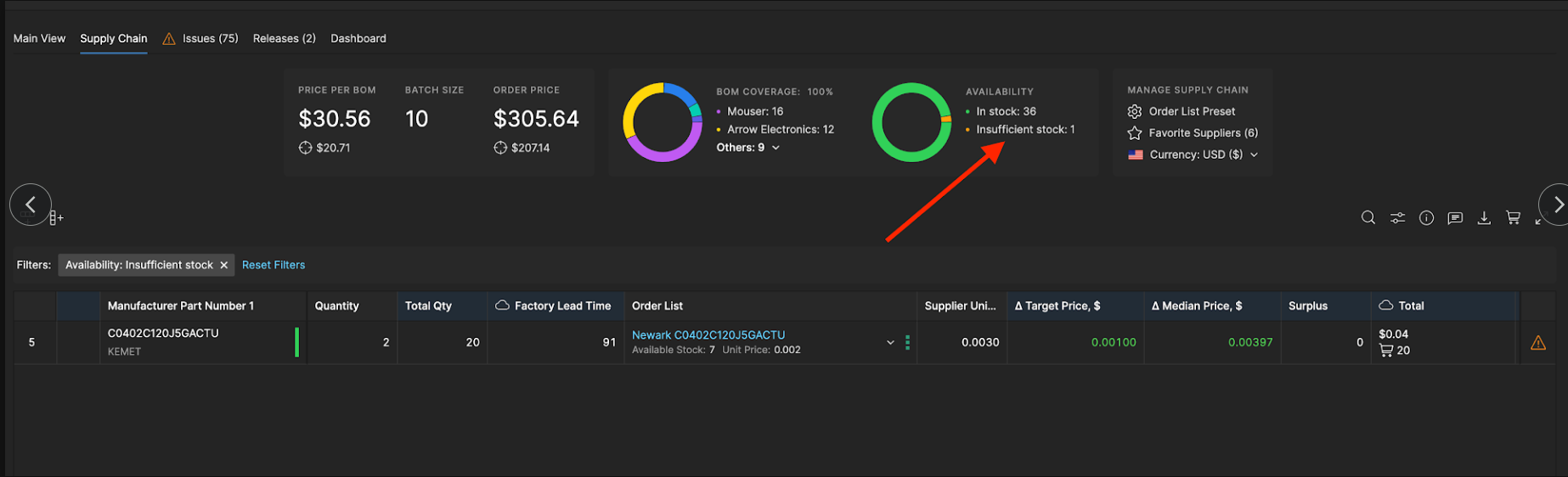
2. Select an alternative supplier. Click the arrow in the Order List cell to see alternative suppliers, then select one with stock. The order list updates to pull the part from that distributor, resolving the stock issue.
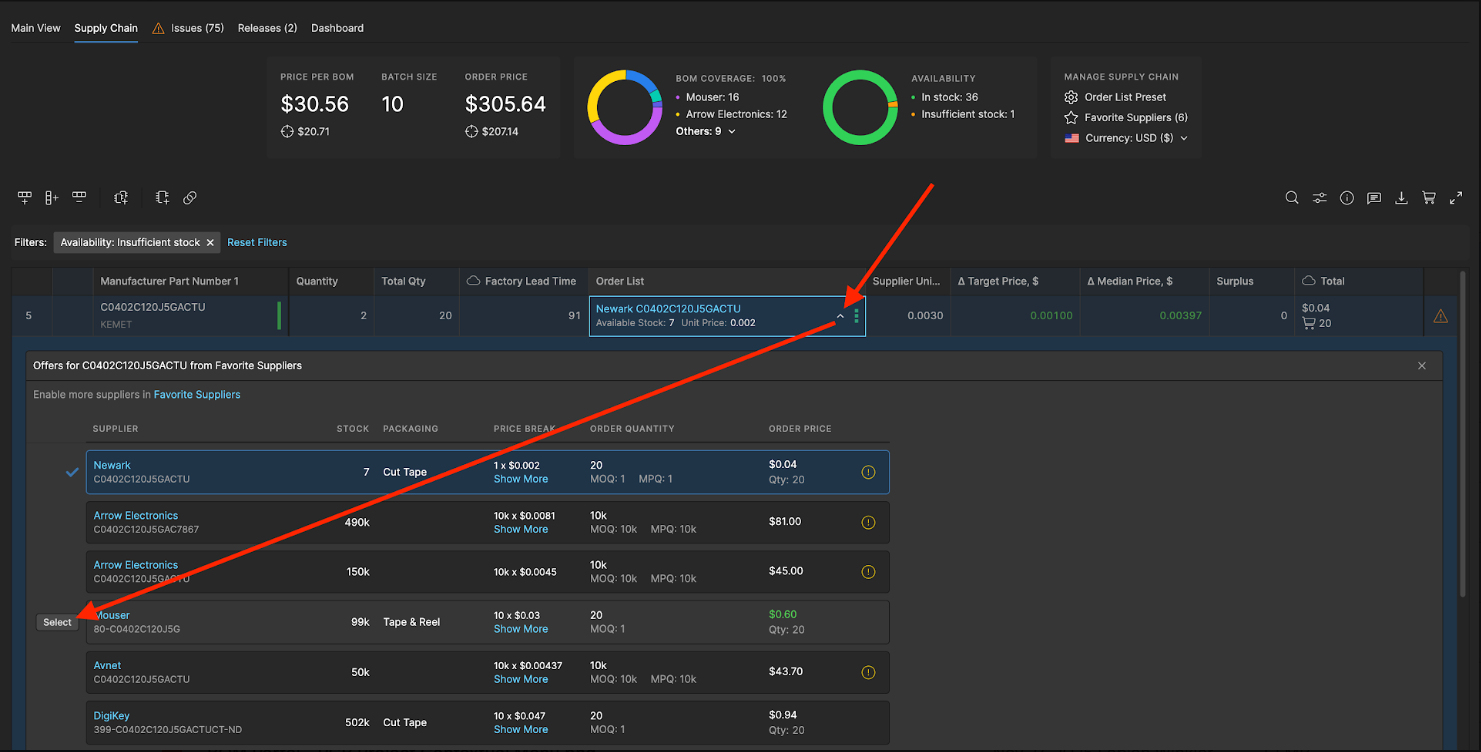
3. Clear filters. Click Reset Filters above the table to view the complete BOM again, then return to Octocart.
