


Fix What's Blocking You
Start with missing part numbers and lifecycle issues. These block procurement, so nothing else matters until they're resolved.
Workflow: Assign Missing Part Numbers
Parts without manufacturer part numbers can't be sourced, and they're common, especially for passives. BOM Portal suggests parts based on descriptions and parameters.
1. Filter to missing parts. In the Issues tab, click the "Missing Part Number: X" link in the BOM Data section.
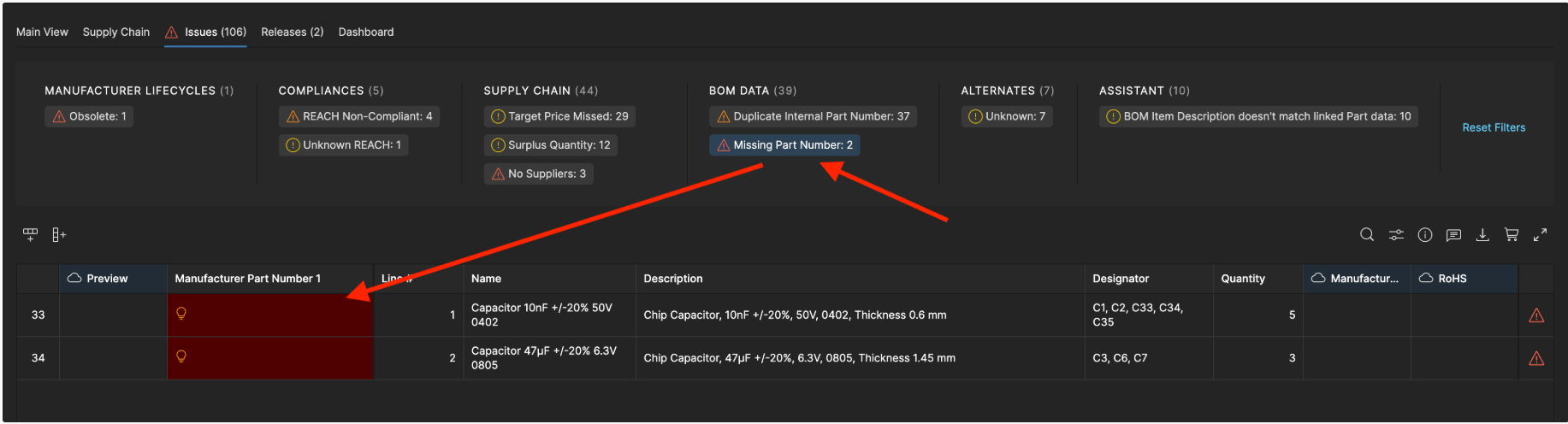
2. Click the empty MPN cell. Double-click the empty cell under "Manufacturer Part Number 1". The system loads suggestions from the parts database based on the part description.
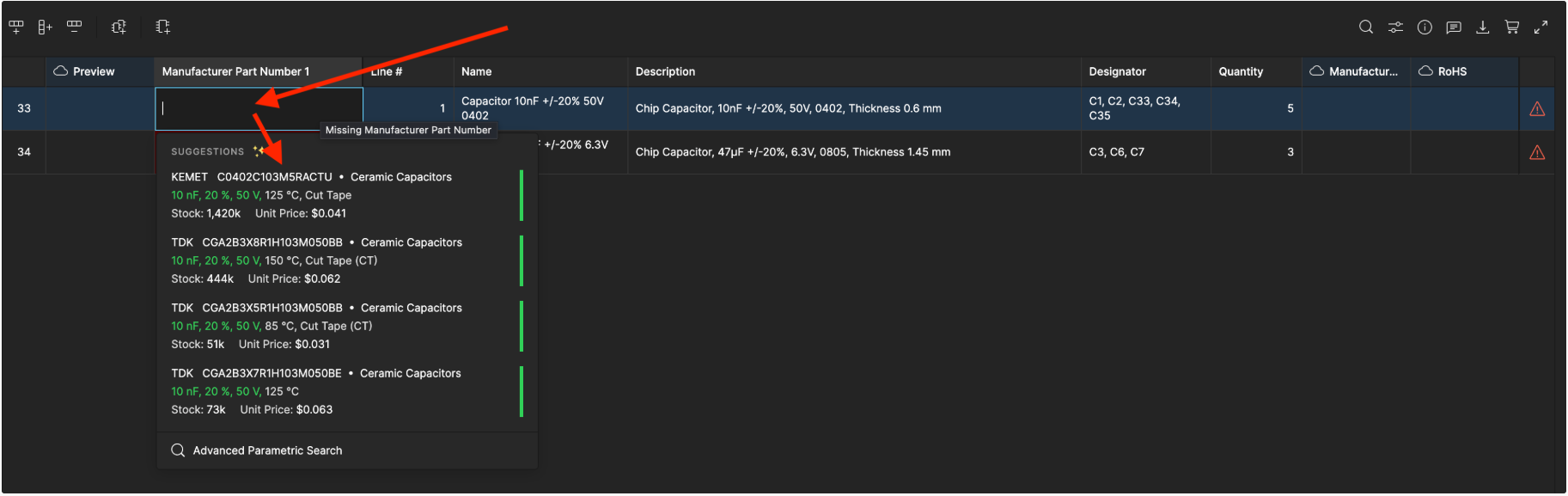
3. Select the suggested part. Review the suggestions and select the matching part (for example, C0402C104M4PACTU for a 100nF capacitor). The part number is populated and the issue count updates.
If no suggestion fits, click Advanced Parametric Search at the bottom of the menu to search deeper.
4. Repeat for the remaining parts. The edited part disappears from the filtered list as its issue is resolved. Continue until the issue count reaches zero.
Workflow: Replace Obsolete Parts
Parts reach end-of-life all the time. Anything marked NRND, EOL, or Obsolete needs a replacement before production.
1. Identify the part. Filter for parts under Manufacturer Lifecycles showing Unknown or Obsolete. These parts either reached end-of-life, don't exist in the database, or are custom items.
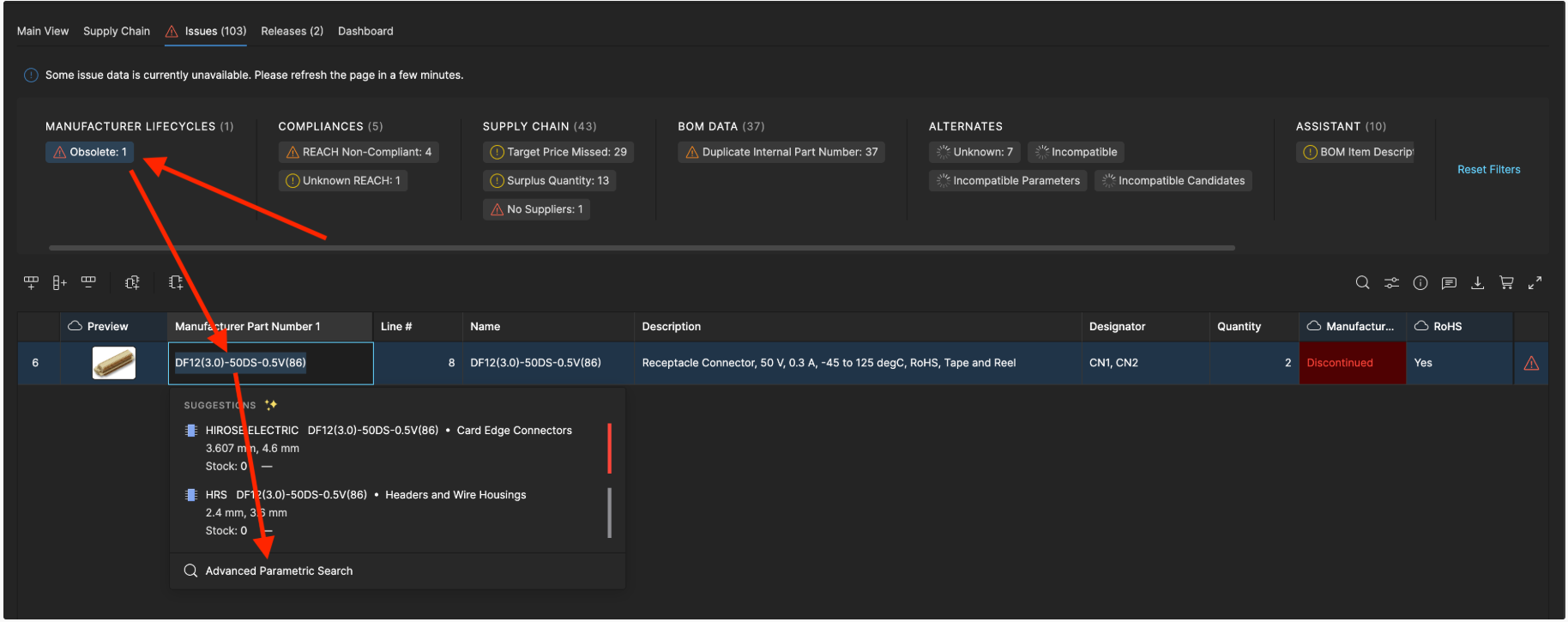
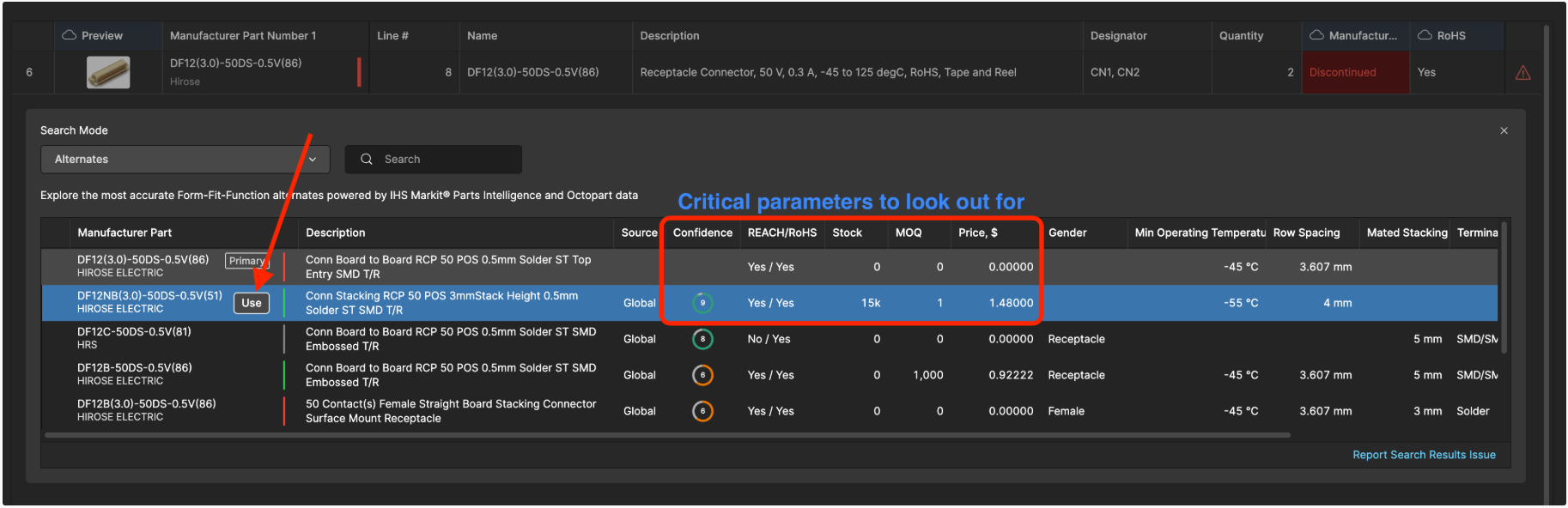
2. Find a replacement. Double-click the cell under "Manufacturer Part Number 1", open Advanced Parametric Search, and click Try Alternate Search Mode.
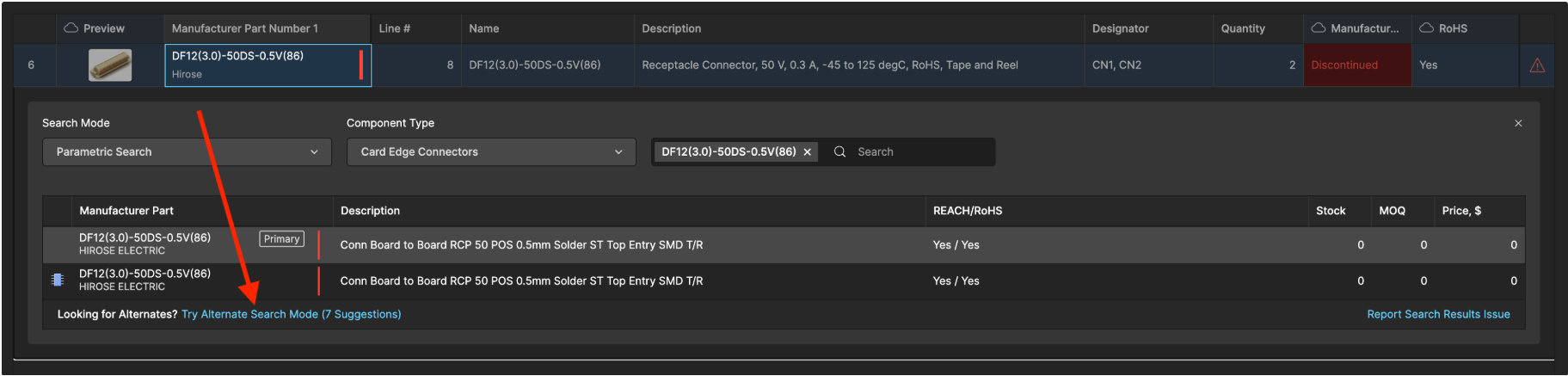
3. Select the alternate. You now see multiple candidates. Check the confidence score to see how closely each one matches the original, including whether it works as a direct replacement. Select the best row and click Use.
With an advanced data extension enabled, you can also request alternates from SiliconExpert or Z2Data, each with its own confidence rating and Years-to-End-of-Life estimate.
While you're here: add alternates. Approving a second source for each line means procurement can switch suppliers later without coming back to engineering. Use the More menu (...) → Autofill Alternates to populate them from your Part Choices, or right-click a row → Add Alternate to choose one yourself. Comment on the BOM line and mention a colleague with @ to bring engineering in for sign-off. Workspace Components Integration documentation.
