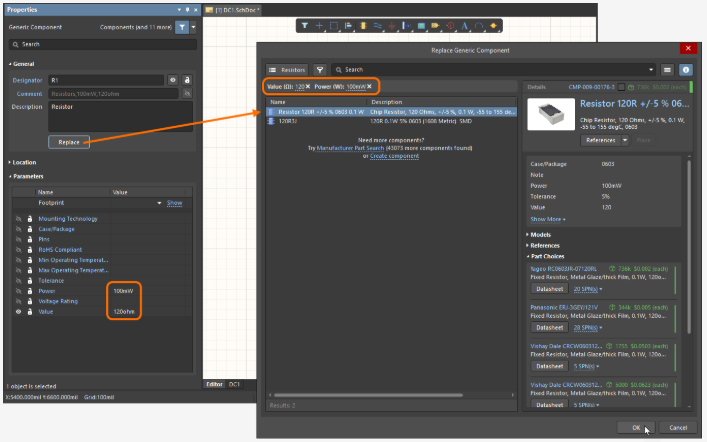
Work with Component Templates
In order to streamline component creation, component templates are used to predefine settings for reusable components in the workspace. They function similarly to a recipe in providing specifications which will later auto fill for future components. Component templates allow users to predefine:
- Component parameters
- Default values
- Required fields
- Naming schemes (IDs)
- Storage folders
- Linked models
- Component types
Users can then create generic components as placeholders in a schematic until a final component is determined.
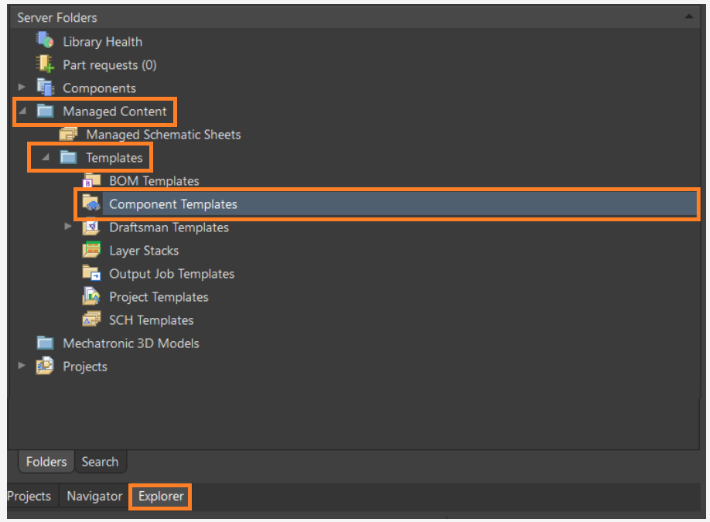
To create a component template, begin by navigating to the Panels > Explorer panel on the bottom right of the screen.

In the Explorer Panel, navigate to the Managed Content > Templates > Component Templates folder.

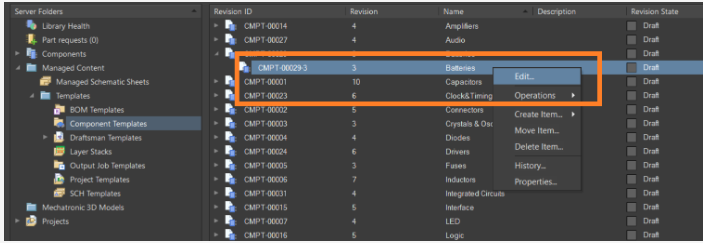
In the Revision ID Menu on the Explorer Panel, find a component template of choice (i.e. capacitor for this example), right click on it and select Operations > Make a Copy to clone the template.


Next, right click on the Copy of Capacitors Tab at the top and click on Close Copy of Capacitors*.

Select Save in the menu that opens.

Creating a Generic Component
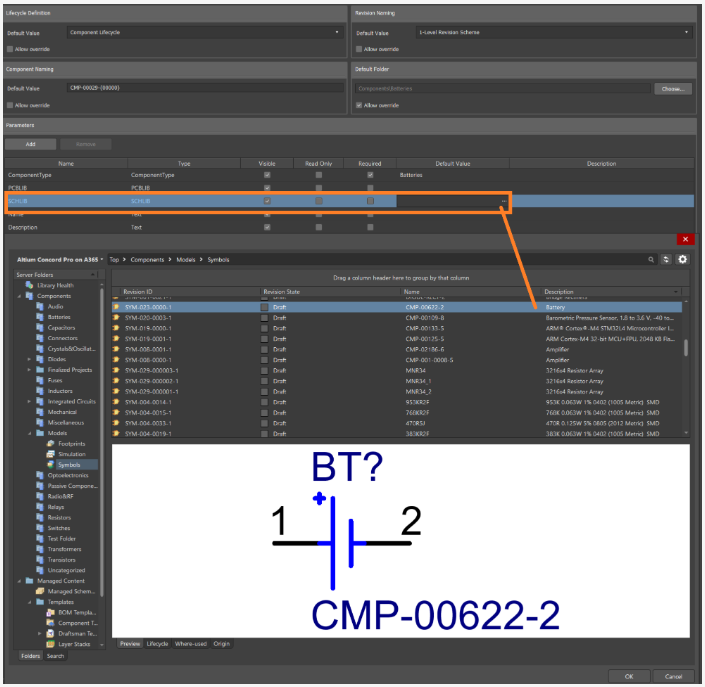
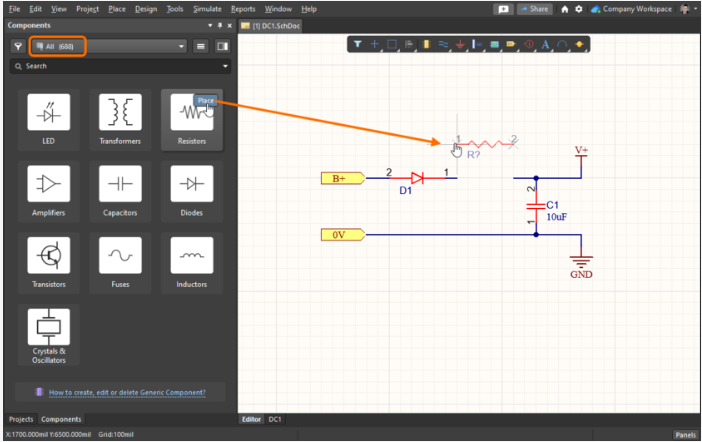
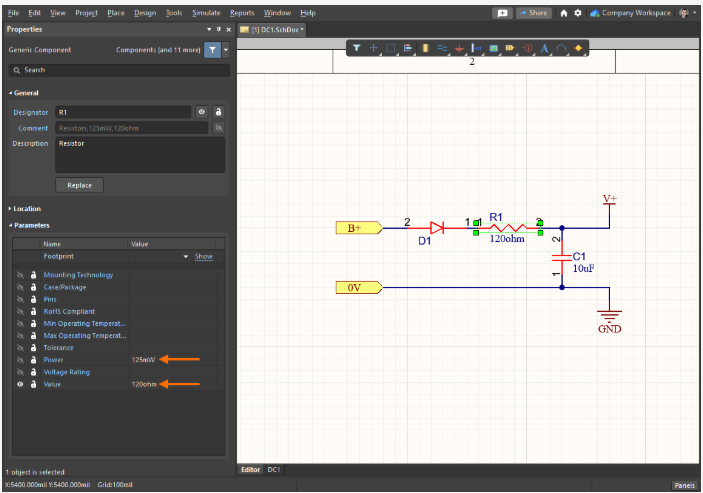
Now that a component template has been created, the next step is to create a generic component. Generic components are intended to be placeholders that can be easily replaced with a suitable component later in the design process. They also can be considered virtual or parametric components which are added to a particular template as a default model.
For example, if we want to add a battery to the circuit without specifying the exact component, we can perform the following steps:
Placing a Generic Component
Replacing a Generic Component