Manufacturer Part Search
Altium Designer has a large component storage database, based on Octopart technologies. The Manufacturer Part Search panel offers a search feature based on categories and parametric filtering that allows you to choose the exact component you need and select a preferred supplier for that physical part, based on cost and availability.
 button menu at the lower right of the main screen.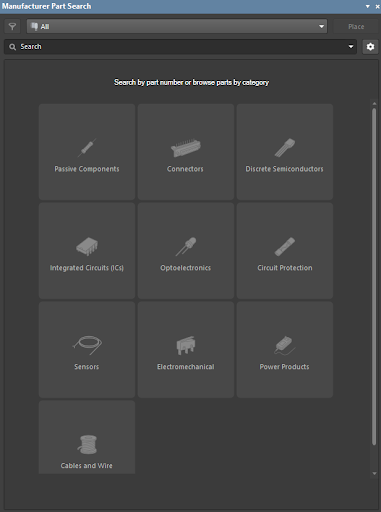
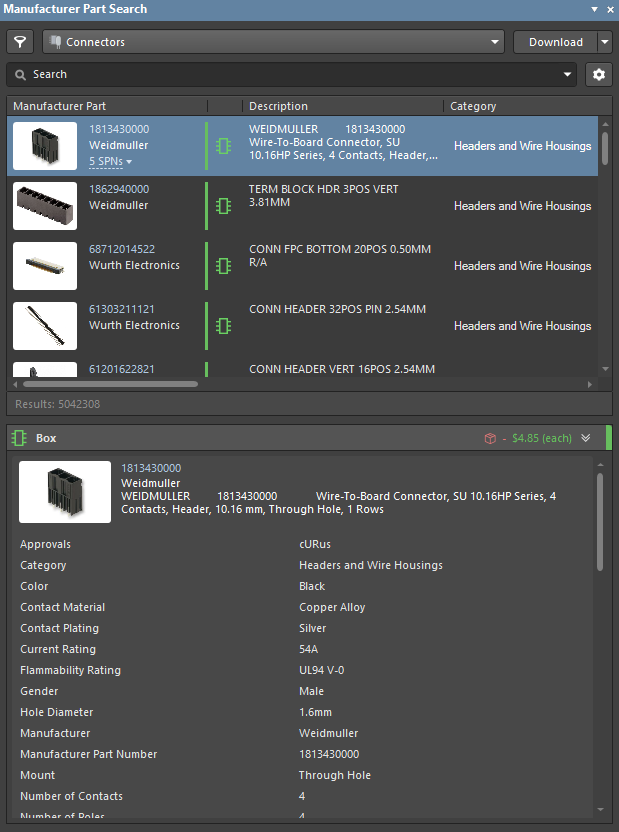
Tip: You can return to the top menu with all categories by clicking the drop-down at the top of the panel and selecting All.
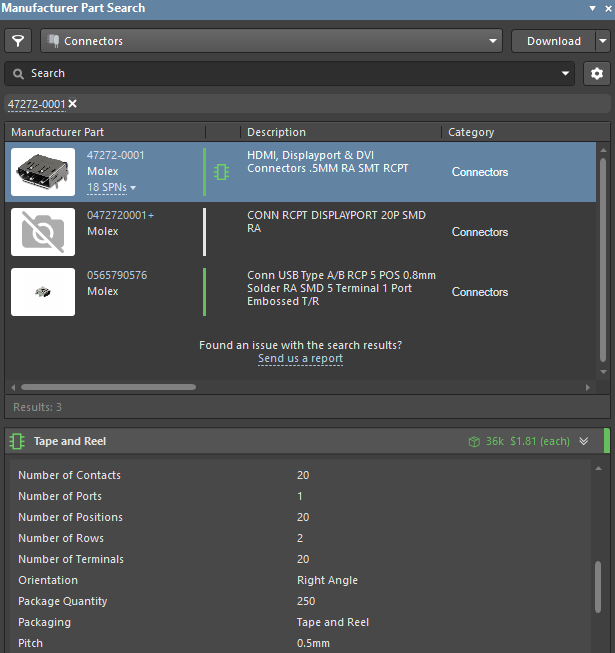
Case #1: You know the required part number. Enter the part number in the Search field and press Enter. For example, enter 47272-0001 in the field and click on the relevant component from the resulting grid.
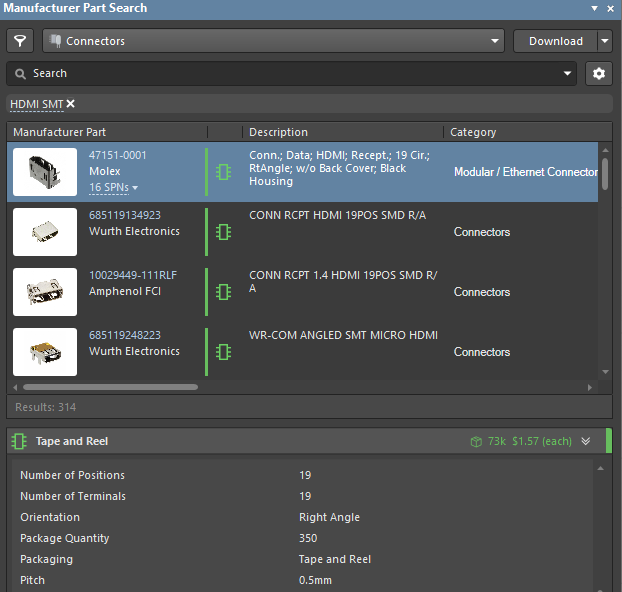
Case #2: You know the part application. You can perform a search using the component description. If you need a surface-mounted HDMI connector, enter HDMI SMT in the search field to find all relevant parts. The currently selected filter options are shown above the parts list and can be removed (using the associated X icon) to modify the active search filters.
 Filter menu by pressing the panel's filter icon at the top-left corner. You will see an extensive list of all the parameters for component filtering. Enable Surface Mount in the Mount region and 2 in the Number of Pins region. The list of components will automatically update each time a check is placed or removed. This allows you to quickly narrow the list of choices to the most suitable manufactured parts, sorted by a combination of model availability, supplier stock, and price. The currently selected filter options are shown above the parts list and can be removed (using the associated X icon) to modify the active search filters.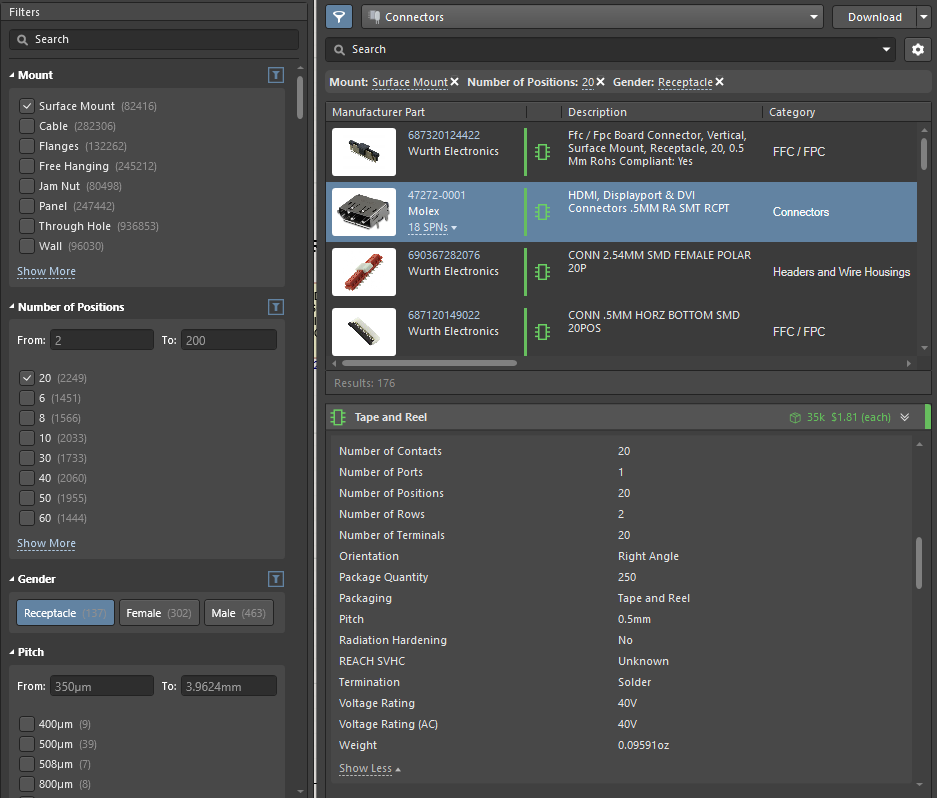
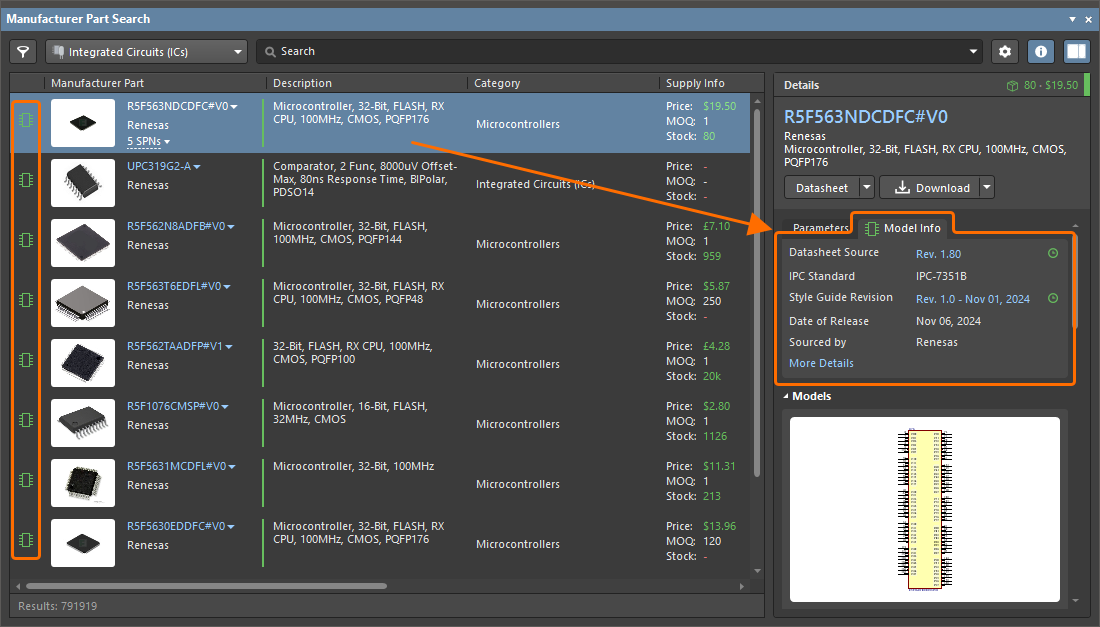
 icon (has models), and some have a gray
  icon (models are missing). The green icon components are identical to the managed components and are ready to be placed in your design. The gray icons cannot be placed instantly on the schematic.

Some parts in the Manufacturer Part Search panel include assigned schematic symbols, PCB footprints, and/or simulation models. Model quality is indicated by icons:
- Generic – Unqualified models with unverified data, often created from community-sourced datasheets.
- ECAD Ready – Manufacturer-qualified models verified through Altium's validation process and industry standards.
- No Model – Indicates no models are available.
The Model Info tab in the Details pane provides model information. Use the Models filter to show parts by model quality level, and the Model Type filter to show parts with specific model types. For parts with Generic models, you can request qualified models using Vote to Add Qualified Model.
Qualified model support requires the EDMS.QualifiedModels option to be enabled in the Advanced Settings dialog. If disabled, only generic model availability icons are shown, and the Model Type filters can be used to find parts with associated model data.

 Select Part Details region of the panel.

-
Active - This is the main stage of the lifecycle; the device is being manufactured, and its use is supported.
-
Obsolete - The component is no longer available.
-
Not Recommended For New Designs (NRFND) - The component is still active but not recommended for new designs due to the completion of the lifecycle.
-
Unknown - The current component lifecycle stage is unknown.