Fix Critical Issues
With issues identified, it's time to resolve them. Start with missing part numbers and lifecycle issues as these block procurement. This section shows you the complete workflow from identification to resolution.
[LIST of Workflows with direct links to them]
Workflows Overview:
- Assign Missing Part Numbers
- Replace Obsolete Parts
- Add Part Alternates
- Setup Favorite Supplier
- Optimize for Preferred Suppliers
- Resolve Insufficient Stock Items
- Order Your BOM with Octopart
Workflow: Assign Missing Part Numbers
Parts without manufacturer part numbers can't be sourced but are quite common - especially for passive parts. BOM Portal suggests parts based on part descriptions and parameters.
Filter to missing part numbers
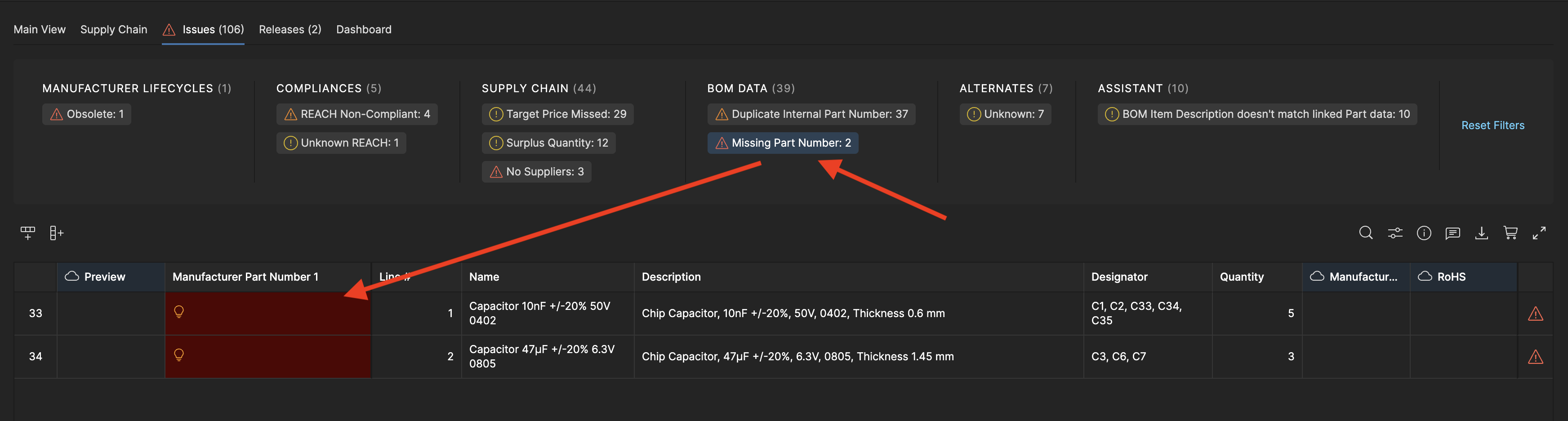
In the Issues tab, click the "Missing Part Number: X" link in the BOM Data section. This filters the list to show only parts needing part numbers.
Click the empty MPN cell
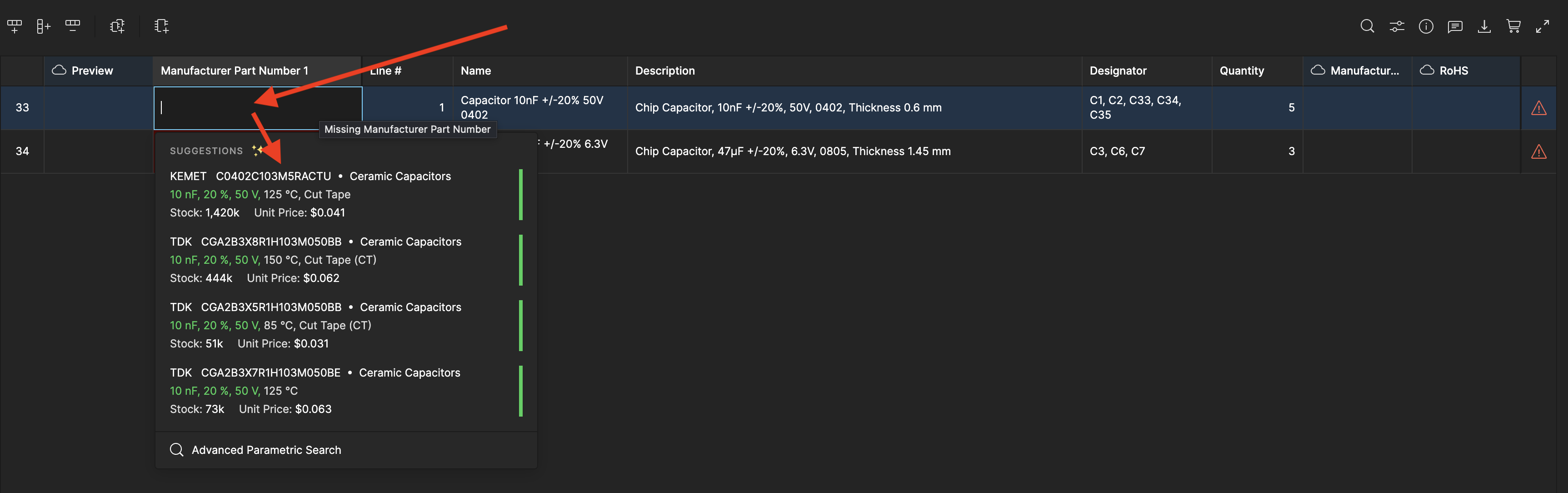
For the first part, click the empty cell 2x under "Manufacturer Part Number 1". The system loads suggestions from the parts database based on the part description.
Select the suggested part
Review the suggestions and select the matching part (for example, C0402C104M4PACTU for a 100nF capacitor). The part number is populated and the issue count updates. Note: If there is no suitable suggestion for you, you can always click on the Advanced Parametric Search at the bottom of such menu to dig even deeper until you find the perfect part for your needs.
Repeat for remaining parts
The edited part should now disappear since the selected issue is solved. Continue assigning part numbers to each part. Watch the issue count drop to zero as you complete the list.
Workflow: Replace Obsolete Parts
Parts reach end-of-life all the time. Parts marked NRND, EOL, or Obsolete need replacements before production. BOM Portal helps in finding the best matching parts.
Identify the part
Filter for parts under Manufacturer Lifecycles showing Unknown or Obsolete status. These parts either reached end-of-life, don't exist in the database, or are custom/proprietary items.
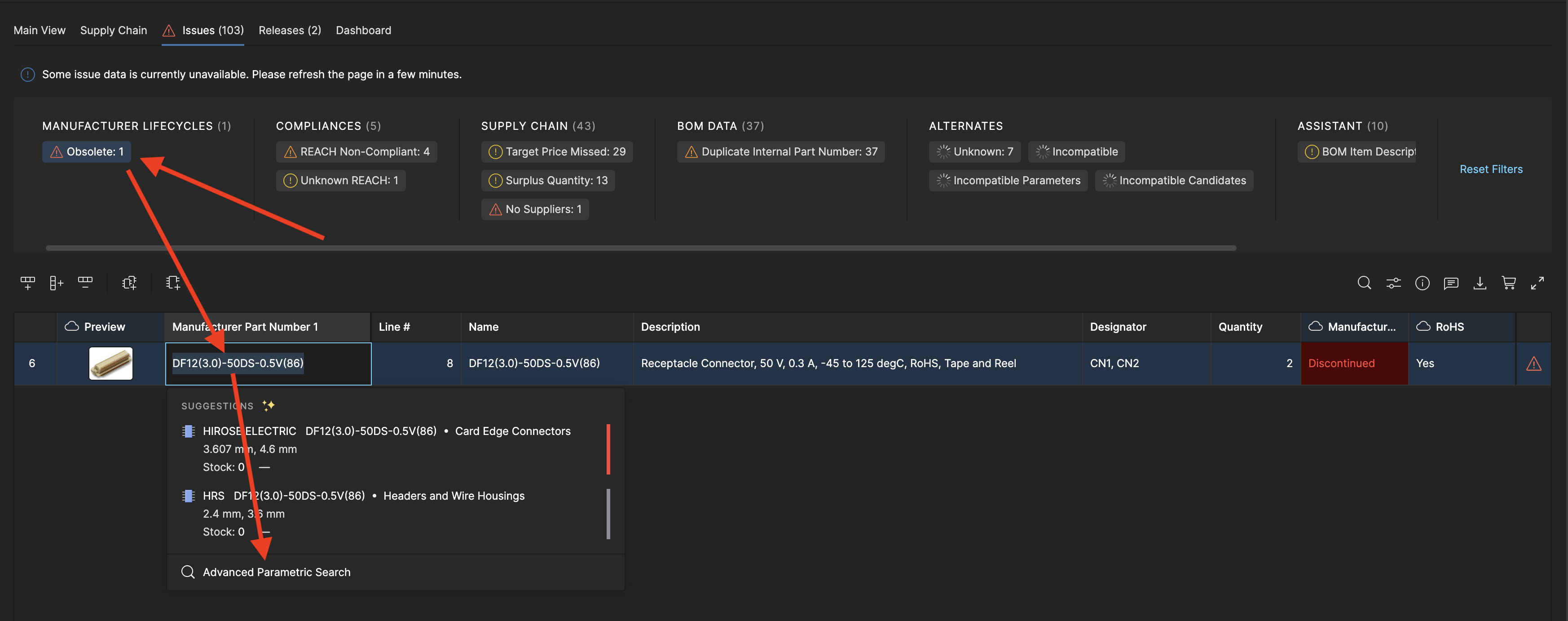
We can either keep the obsolete part and look for an alternate - or we will replace the obsolete part entirely. In this step we will show how to replace it.
Find a replacement part
For the first part, click the empty cell 2x under "Manufacturer Part Number 1" again but this time, we will go for the Advanced Parametric Search and click on Try Alternate Search Mode.
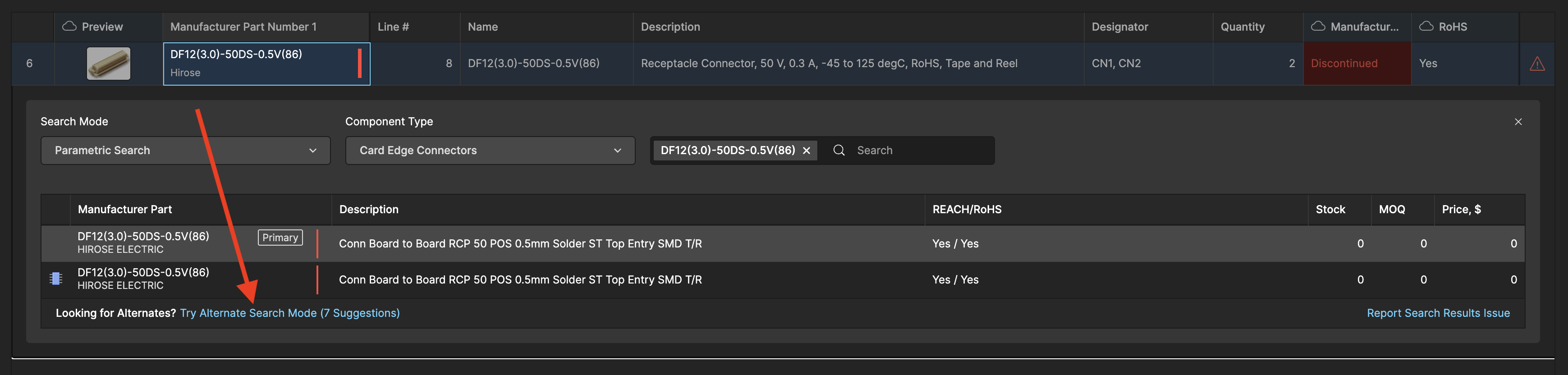
Select alternate
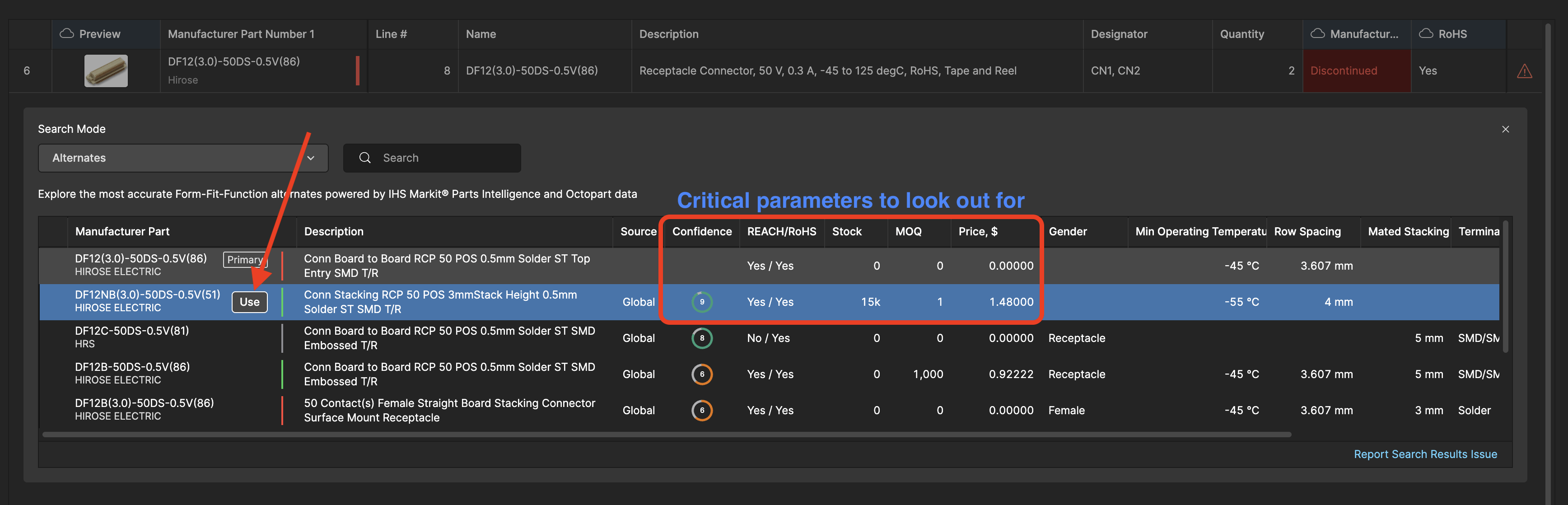
In this view you now see multiple possible alternates. The confidence score shows how well each alternate matches the original part - and if it is suitable as a direct replacement. Select the row with the best alternate and click Use to include it in your BOM.
Note: If you have access to one of the advanced data extensions, you can request alternate parts from these with their own confidence rating. This allows you to make confident decisions - including Years-to-end-of-Life estimations.
Workflow: Add Part Alternates
Adding alternates protects against supply chain disruptions. If your primary part goes out of stock, procurement can seamlessly switch to an approved alternative.
Auto-fill alternates
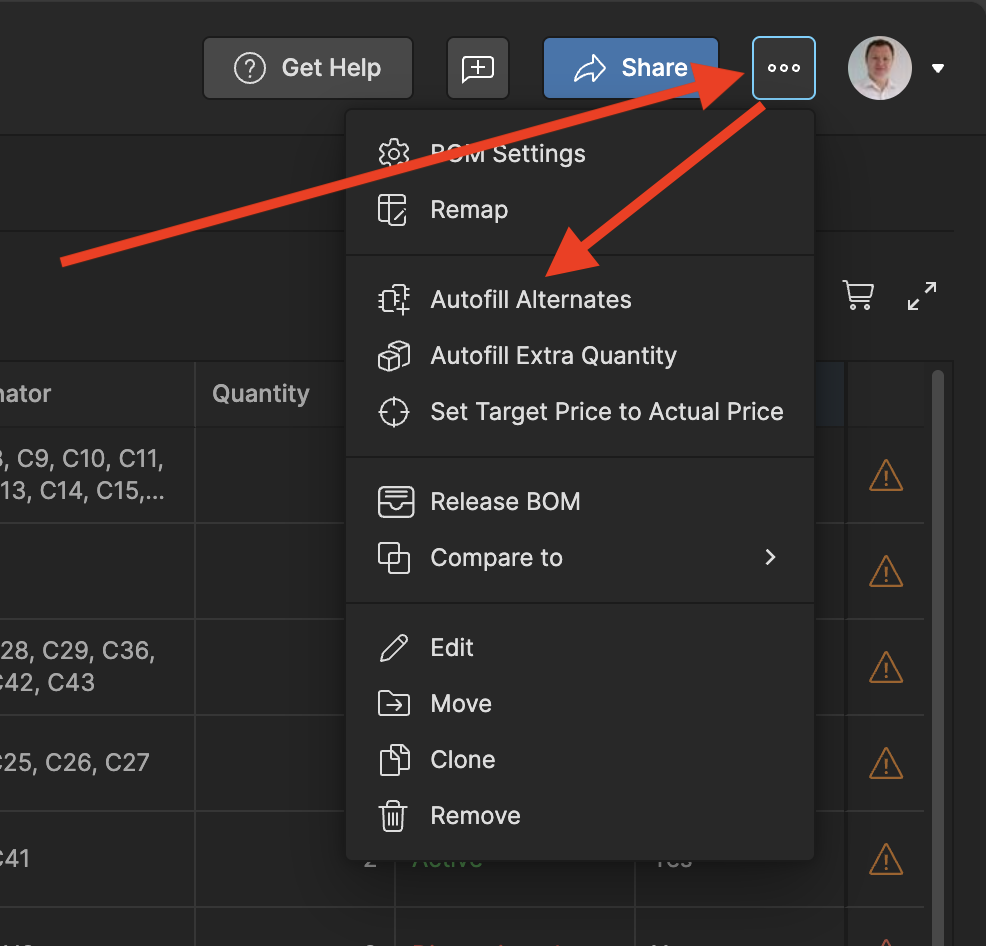
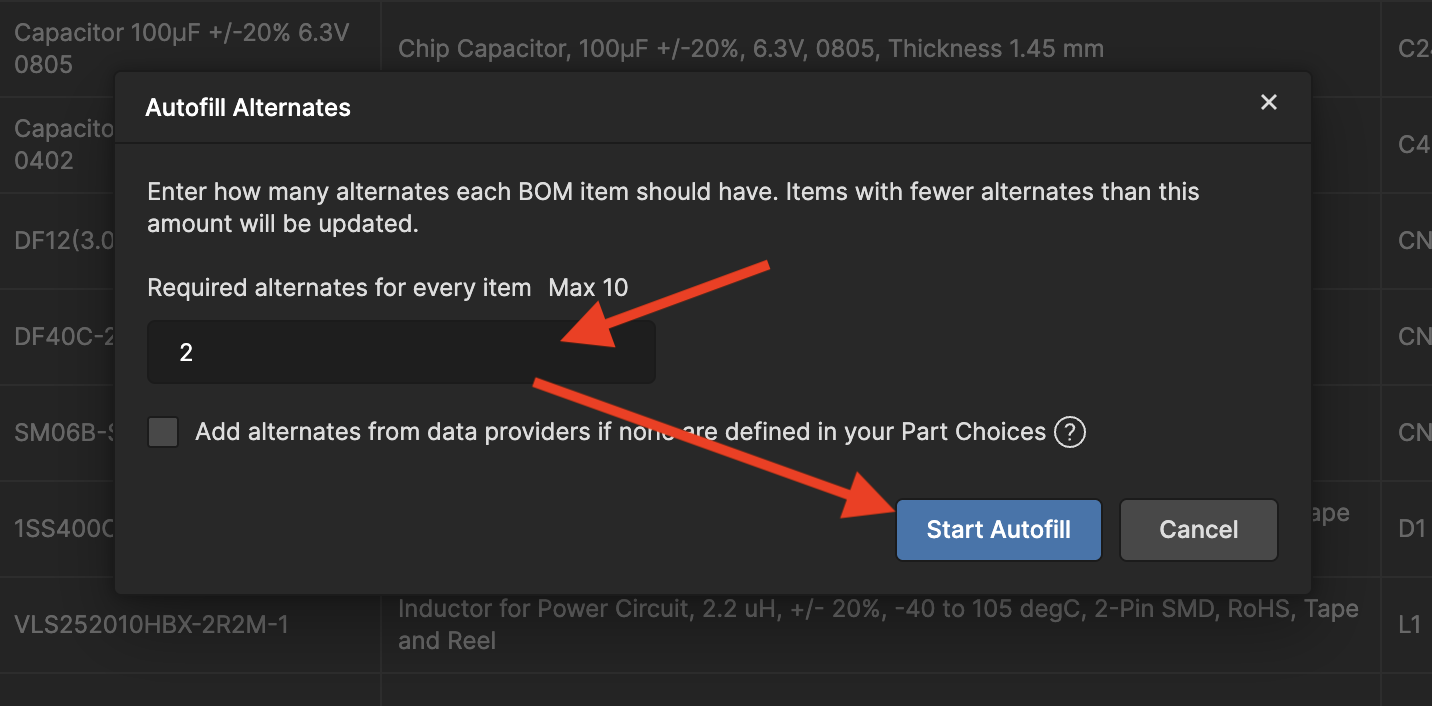
Click the More menu (...) → Autofill Alternates. You can now select how many alternates per BOM row you want to have.
Click Start Autofill in the dialog. The system attempts to assign alternates to all parts based on Part Choices in the part library. If you want to add alternates based on data providers (e.g. IHS Market; high confidence rating only) - simply check the box Add alternates from data providers if none are defined in your Part Choices.
Add manual alternates
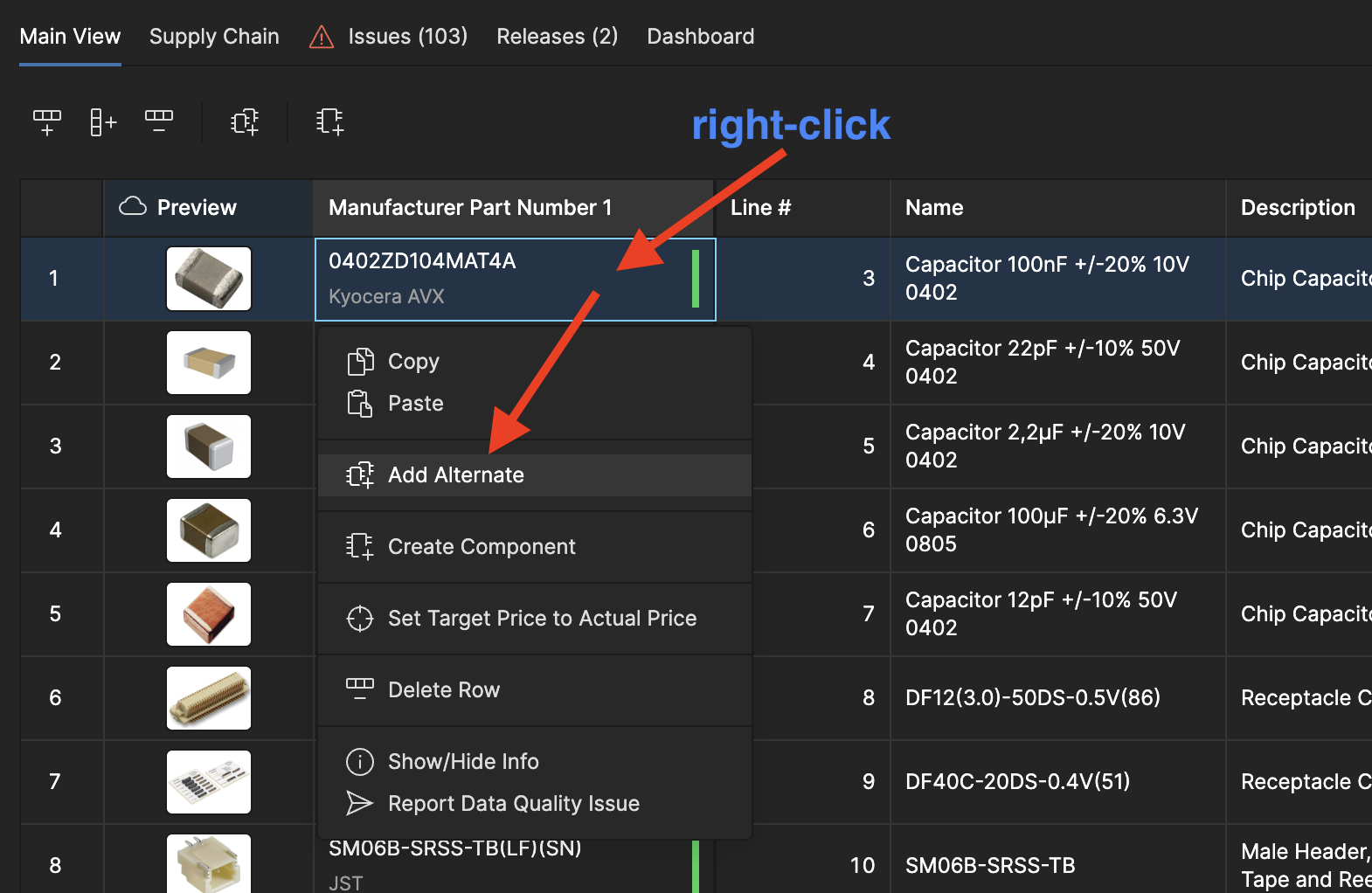
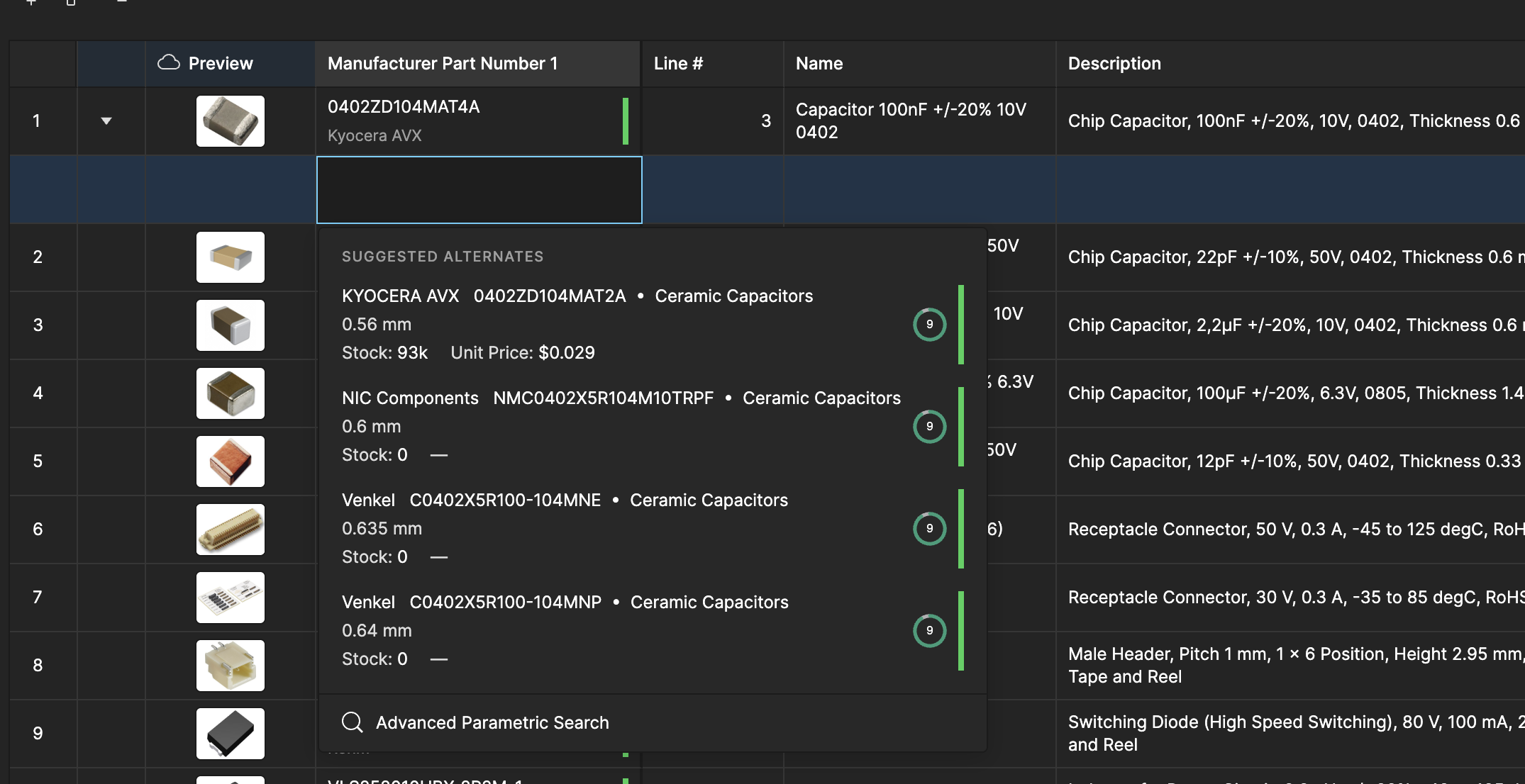
For parts needing specific alternates, right-click the row (e.g. Manufacturer Part Number cell) → Add Alternate. An empty row appears below. Click the empty MPN cell and select from suggestions (or go through the Advanced Parametric Search).
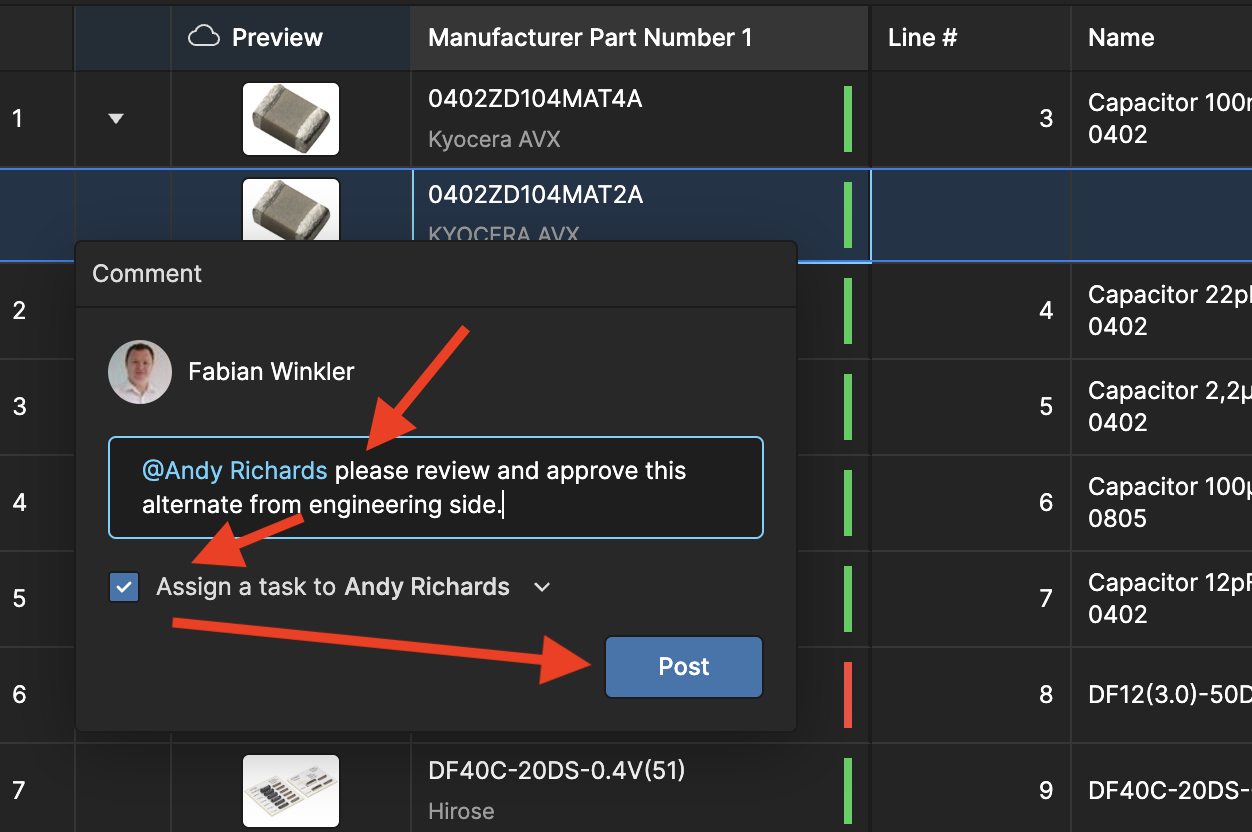
Involve Engineering for alternate feedback or selection
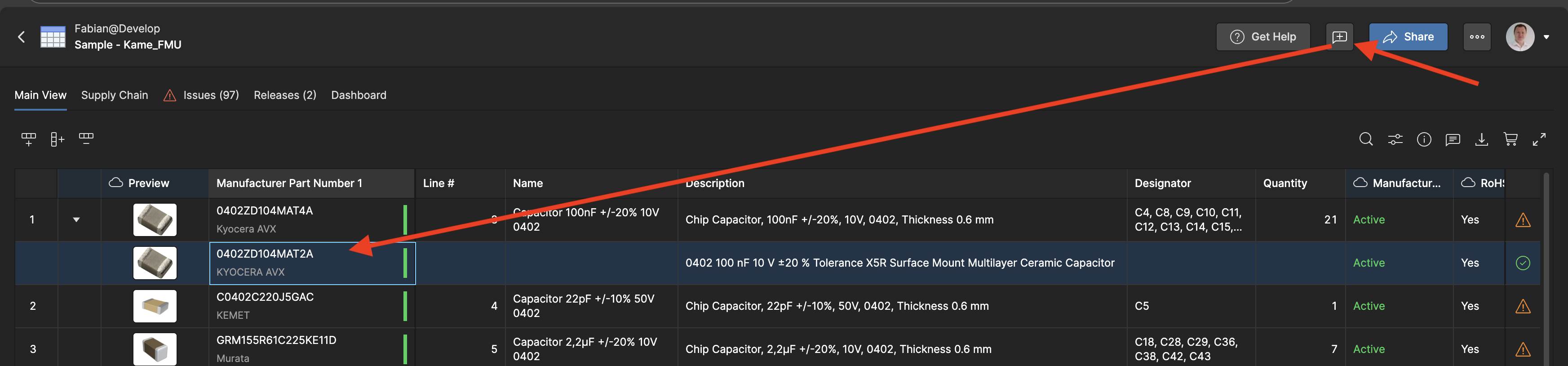
Click the Comments Tasks icon (speech bubble) at the top right of the BOM View and then select the part row where you want to place the comment. Then, add your comment, for example, explaining why the alternate was chosen or assign tasks to team members for validation.
Note: you can also mention colleagues with the @ functionality to ensure they will get a notification.
Workflow: Setup Favorite Suppliers
Before optimizing your order lists, configure which distributors you prefer to work with. This ensures the BOM Portal prioritizes your established vendor relationships when calculating costs and availability.
Access BOM Settings
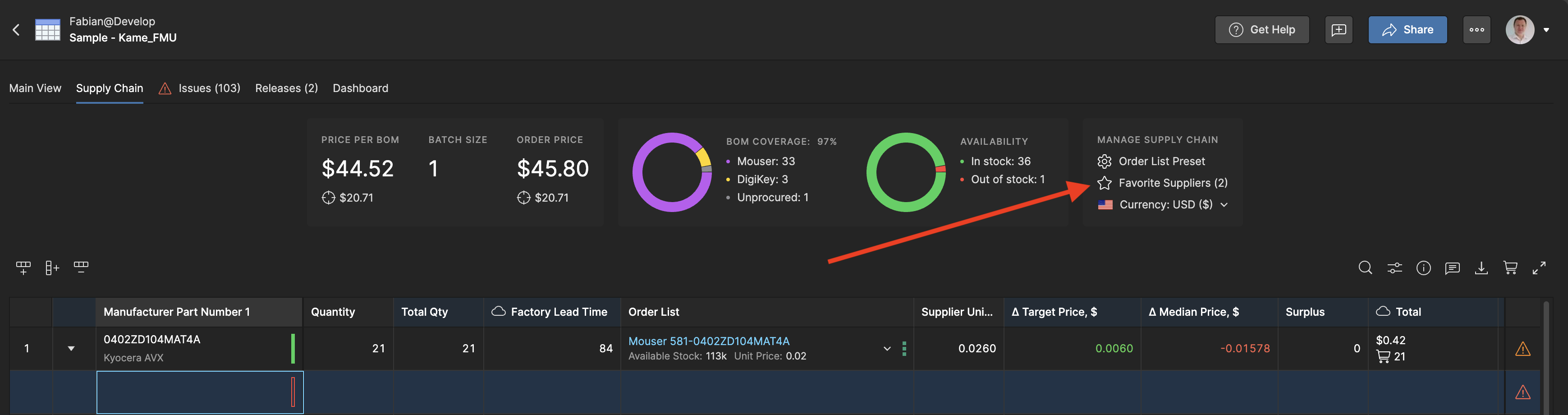
Click the More menu (...) in the top-right corner of your BOM view, then select the BOM Settings. This opens the BOM configuration dialog. If you are already in the Supply Chain tab, you can also click directly on ☆ Favorite Suppliers to open the settings.
Navigate to the Suppliers section
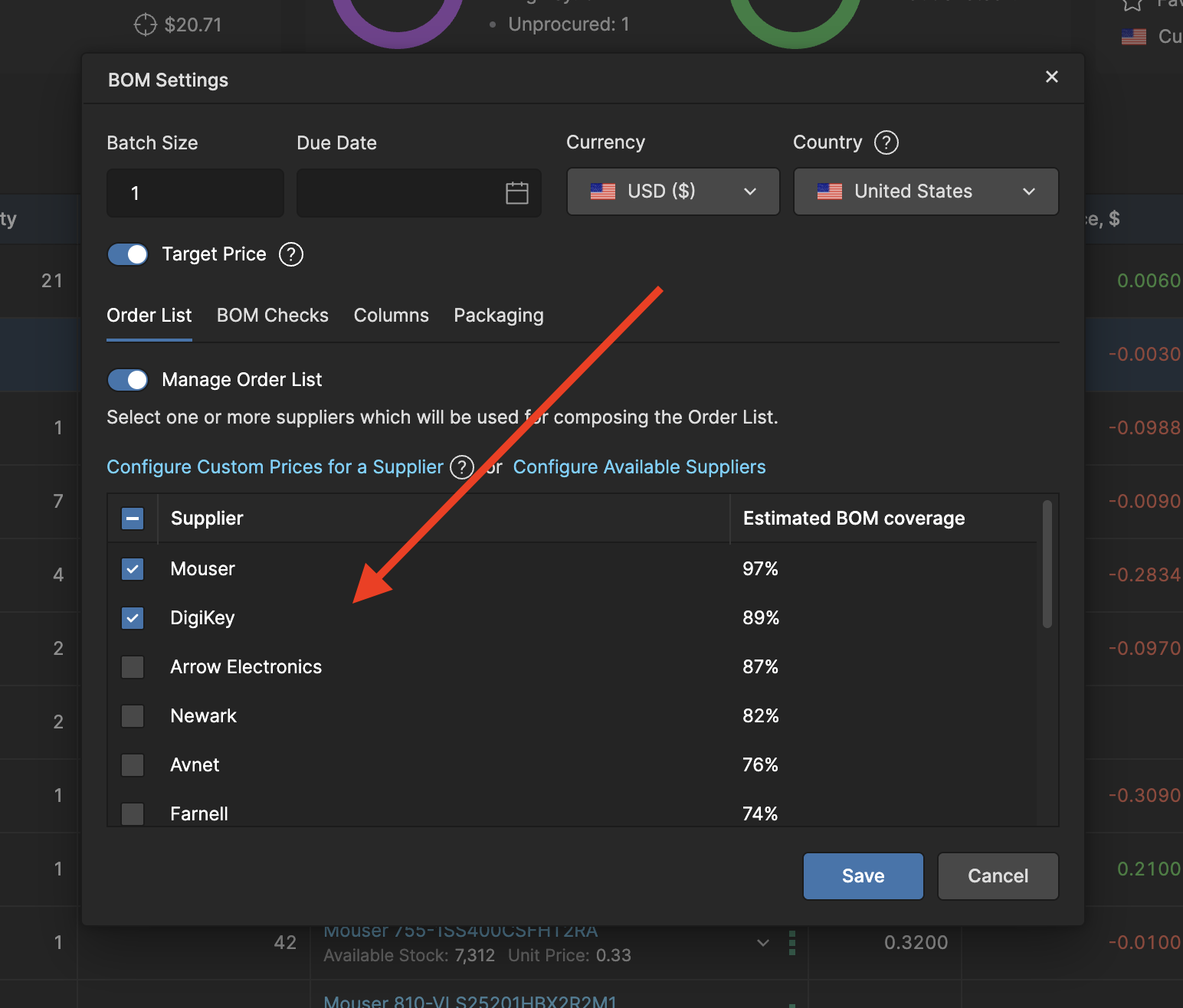
In the Settings dialog, you'll see a list of all available suppliers (Mouser, Farnell, Newark, Digi-Key, Arrow, etc.) as well as their estimated BOM coverage.
Note: If you are missing suppliers, check out the link Configure Available Suppliers where you can define allowed suppliers on a Workspace level. There you will see a link to Configure Custom Prices for a Supplier where you can get your custom prices via an API key for the supported suppliers.
Select your preferred distributors
Check the boxes next to the suppliers you regularly purchase from. Uncheck the distributors you do not have accounts with or prefer not to use. Your selections determine which suppliers appear in pricing calculations and order lists.
Workflow: Optimize for Preferred Suppliers
Use the order list presets tailored to your production quantity and preferred suppliers. This lets you quickly compare sourcing strategies.
Select your Order List Preset
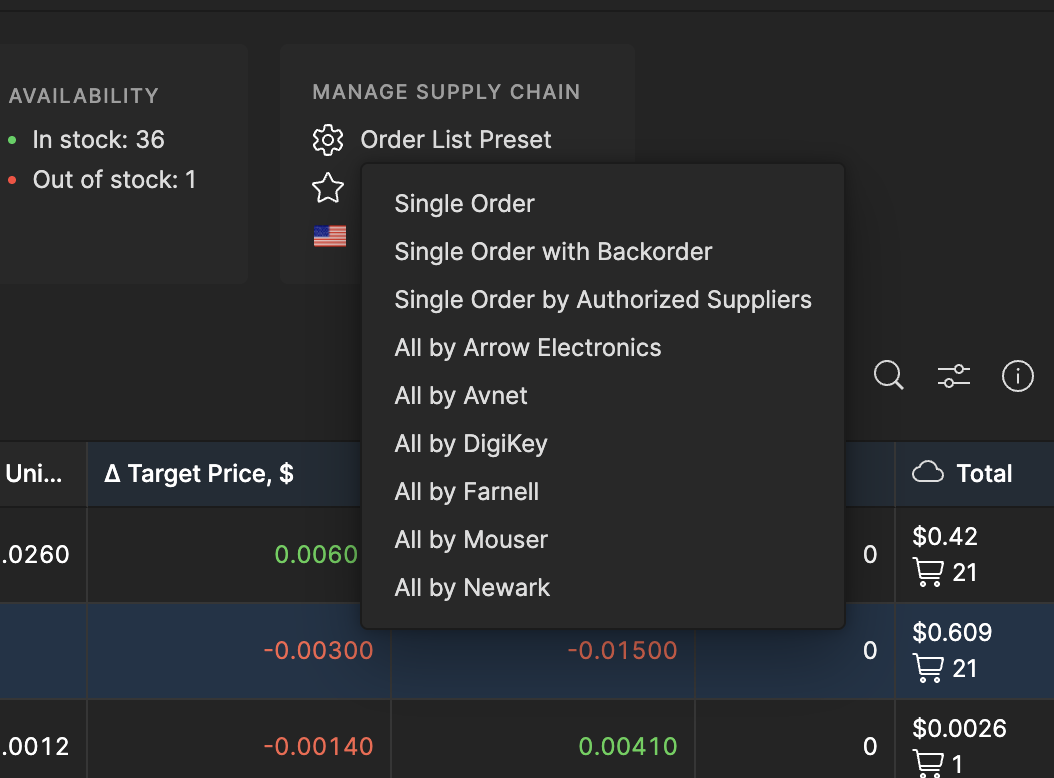
In the Supply Chain tab, click on the Order List Preset to see all available options from a Single Order (cheapest) to specific Suppliers (where available) to reduce the number of orders.
Workflow: Resolve Insufficient Stock Items
When parts show zero (or not enough) availability from your preferred suppliers, you will need to find alternatives from other distributors.
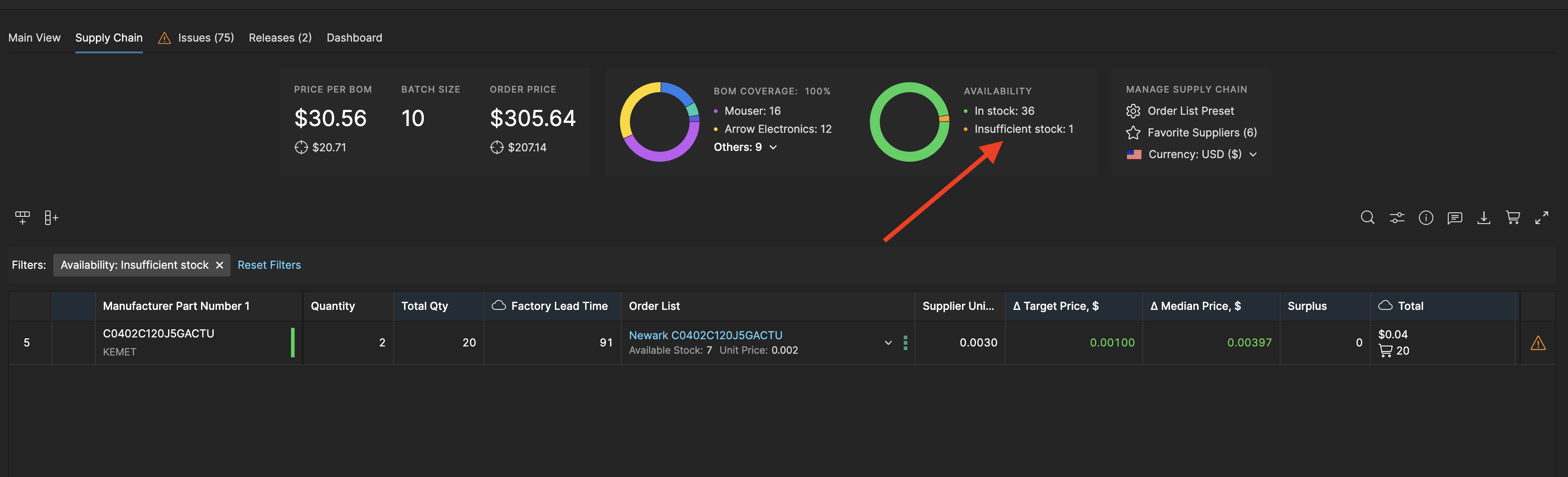
Filter to Insufficient Stock
In the Supply Chain tab, filter for Insufficient Stock by selecting it in the Dashboard. This filters the table below to only show parts unavailable from your currently selected supplier.
Select alternative supplier
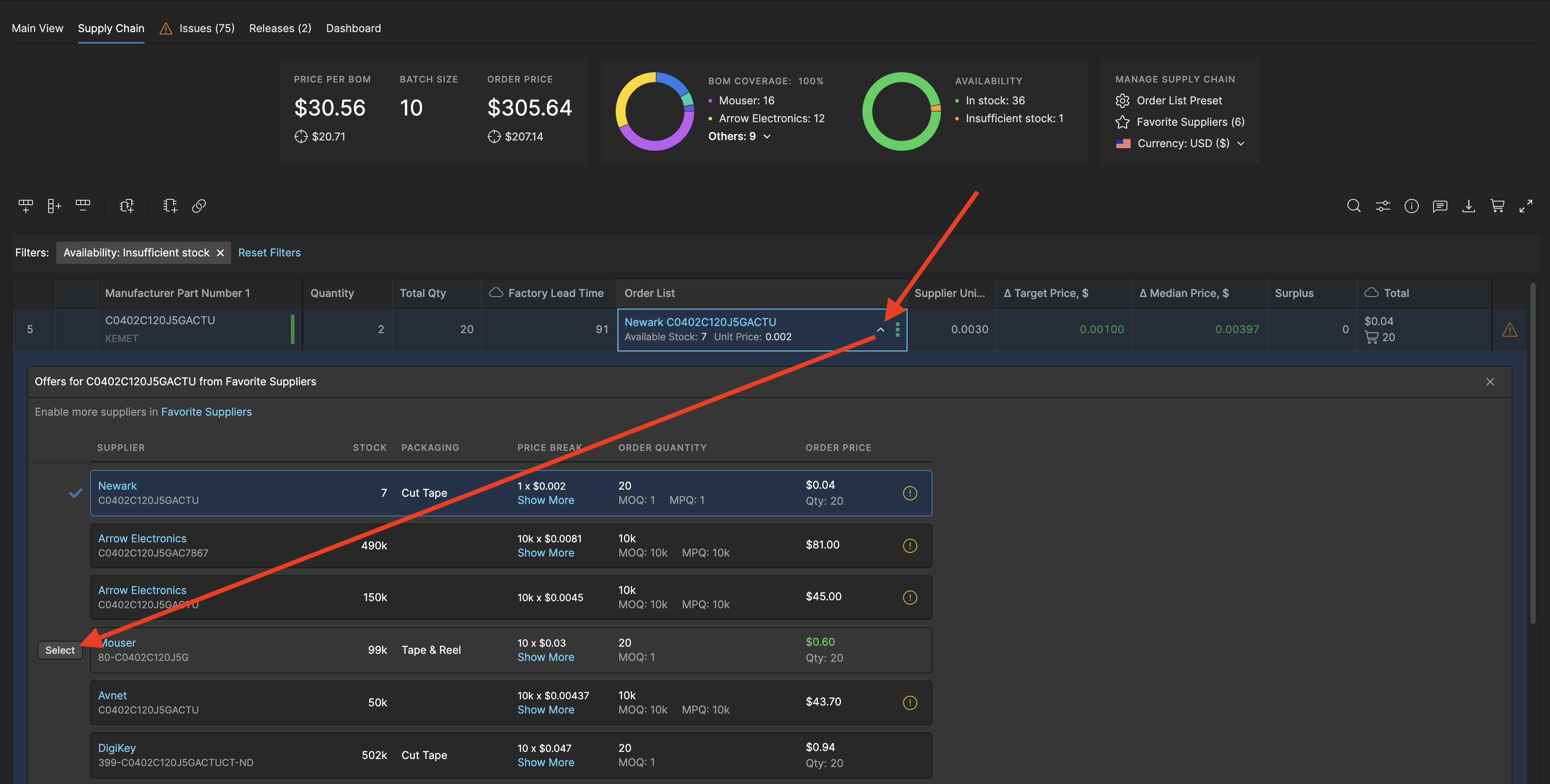
To see available alternative suppliers, click on the arrow in the Order List cell. Select a new supplier with stock (e.g., Mouser). The order list updates to pull the part from the available distributor, resolving the stock issue.
Clear filters
Click the Reset Filters above the table to view the complete BOM.
Workflow: Order Your BOM with Octocart
Once your BOM is optimized and the suppliers are selected, you can place orders directly through the Octocart integration. This streamlines the procurement process by pushing your order list straight to the suppliers checkout page.
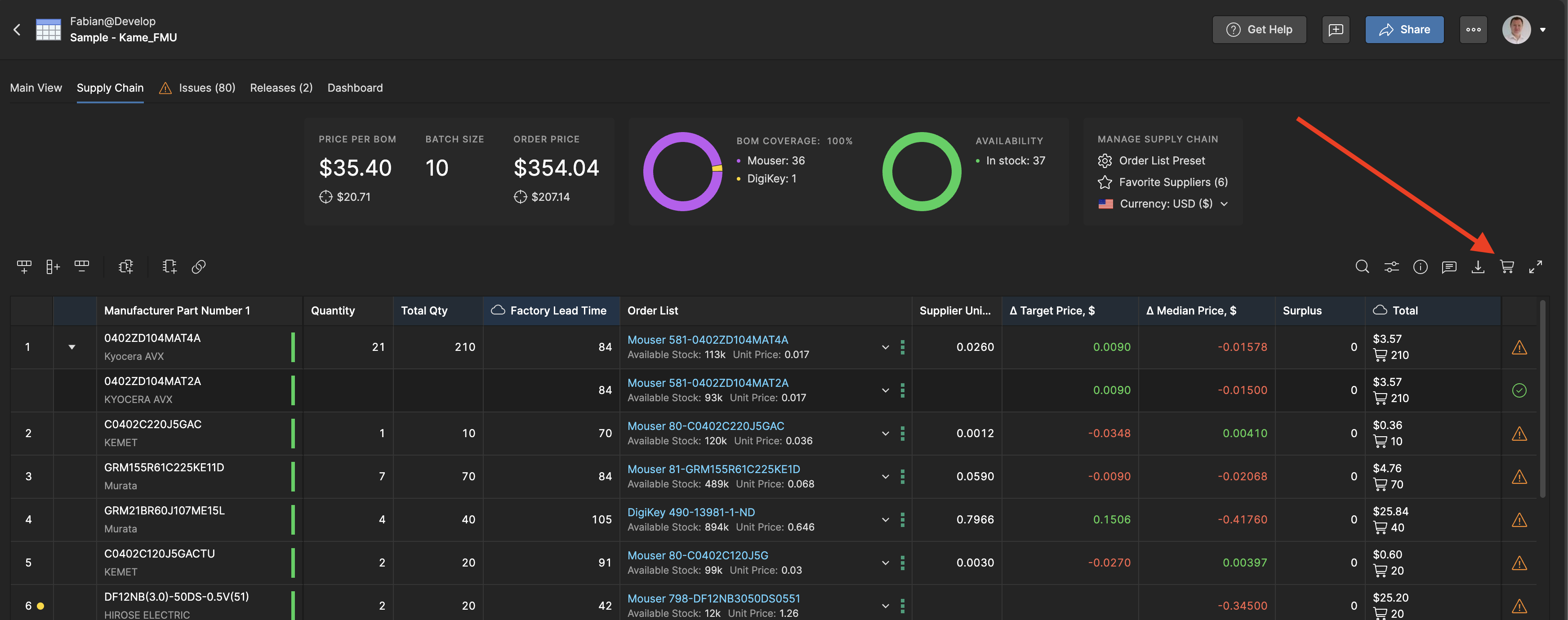
Select the shopping cart icon (Octocart)
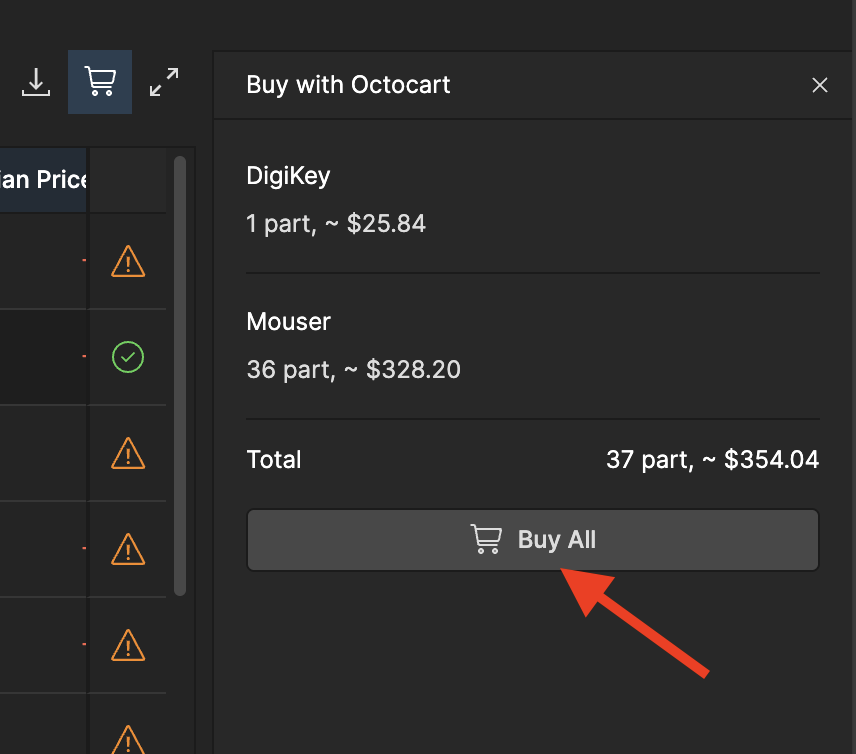
To use Octocart, select the shopping cart icon in the top right above the parts table.
Review and buy
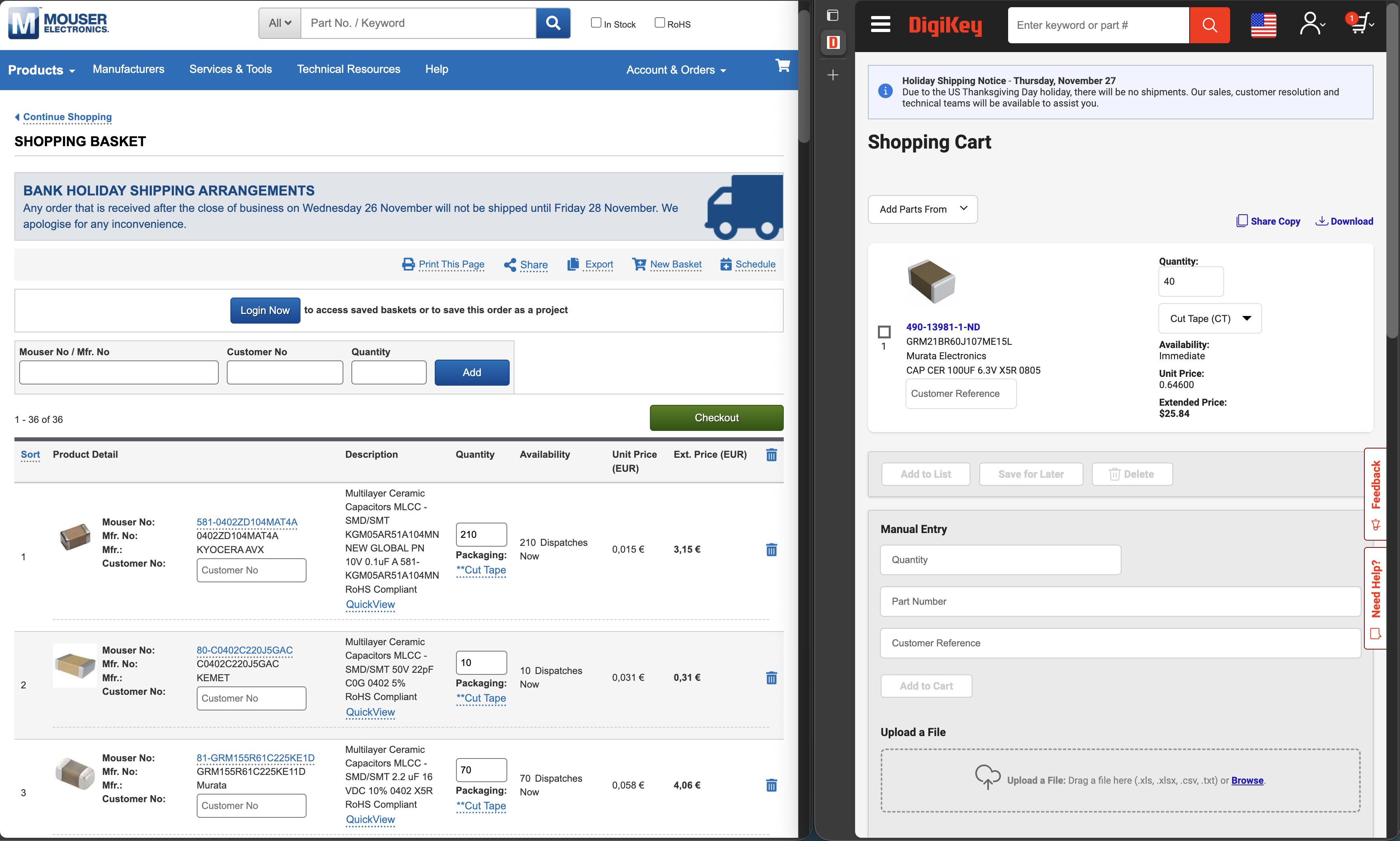
Review the supplier and pricing listed here and click on Buy All. Next, all supported supplier pages will open as new browser tabs with the parts added to the checkout cart - ready to be bought just with a few more clicks.