BOM Portal
/ Get Your BOM In
Completed
Sign In To Save Your Progress
Click if you find this content useful
Next Article –
BOM Portal
Get Your BOM In
BOM Portal offers two ways to add a Managed BOM to your Workspace based on your source data.
Access BOM Portal
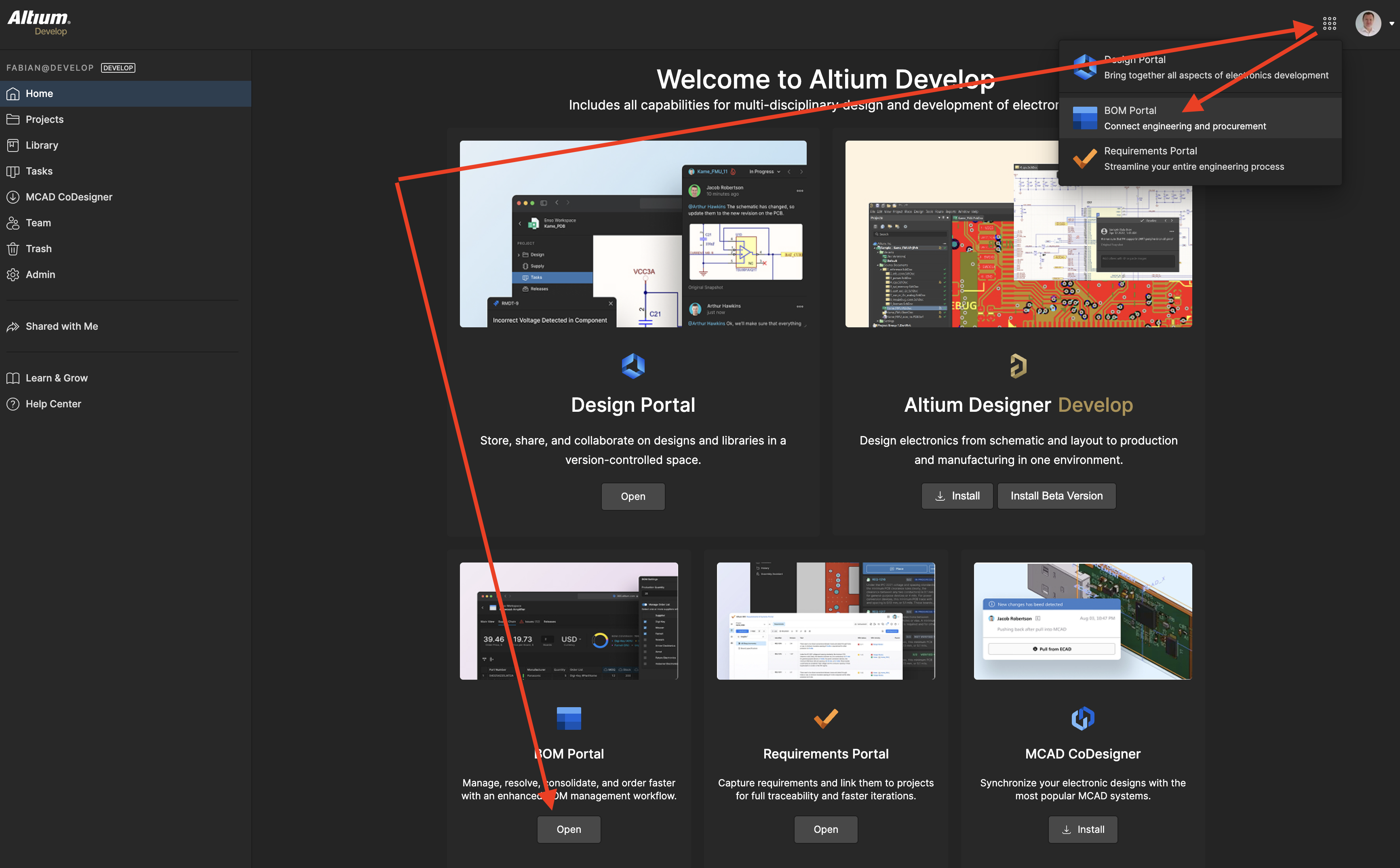
From your Altium 365 Workspace, click the 9 dots in the top right and select the BOM Portal or open the BOM Portal from the Workspace Home page.
Access BOM Portal through the 9-dot menu in your Altium 365 Workspace
Method 1: Create a BOM from a PCB Project
Use this when you work with your electrical engineers in the same Altium 365 workspace. The system extracts a Managed BOM directly from the PCB project and maintains a live connection for synchronizing updates.
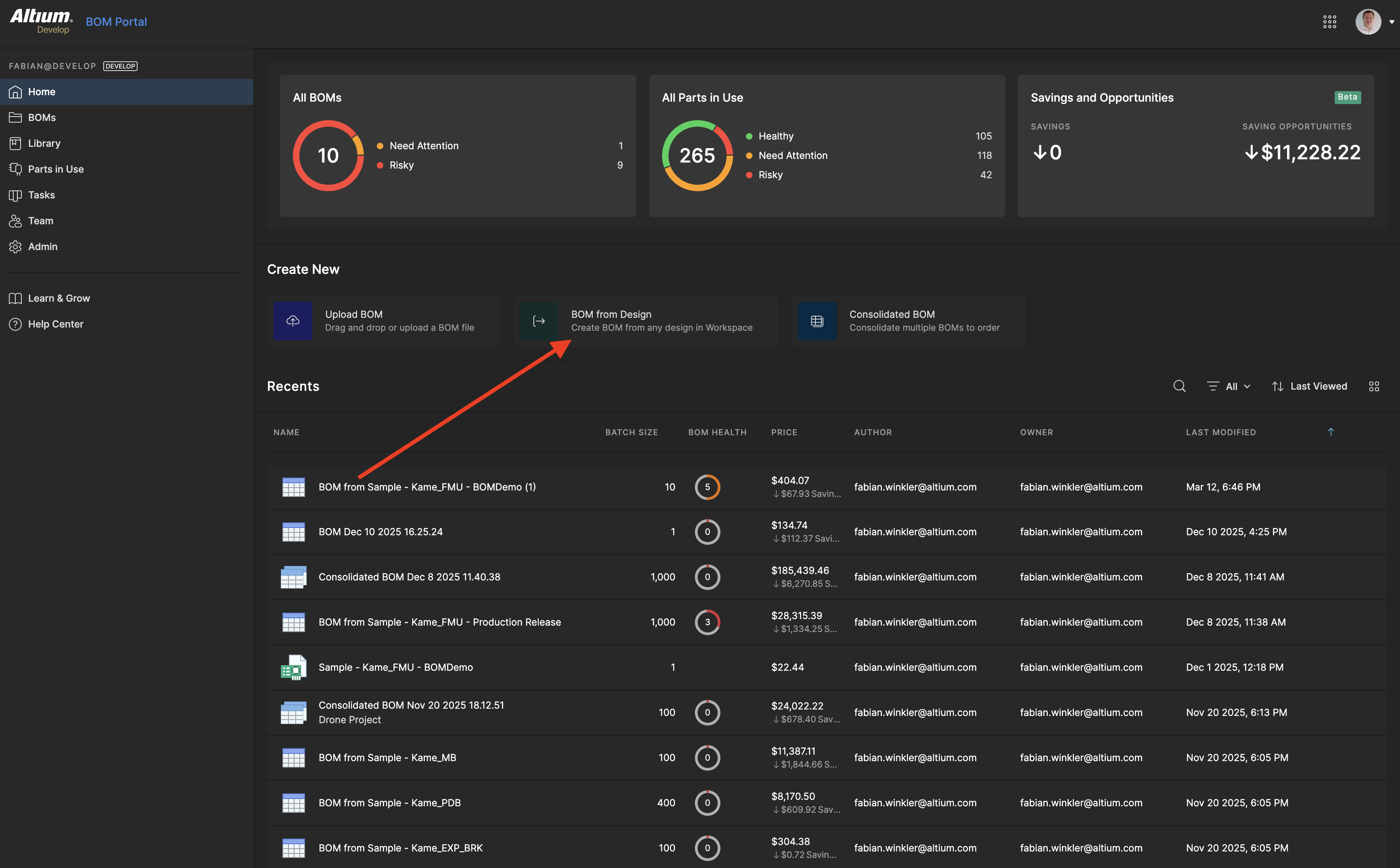
1. Select the “BOM from Design” menu on the BOM Portal Home page.
Access the contextual menu of the PCB project
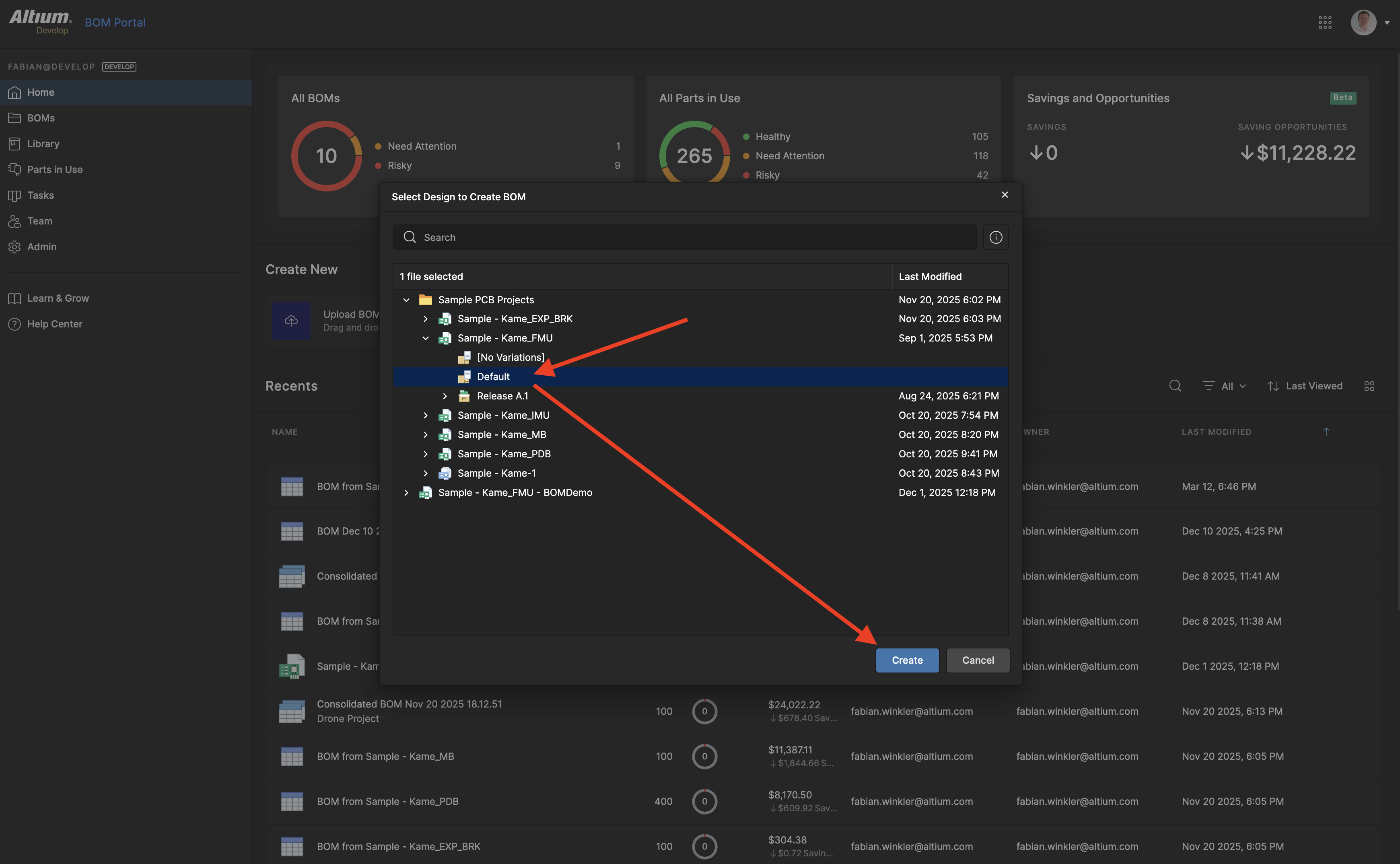
2. Select your PCB Project, the variant you want to use, and click Create. A dialog opens showing the BOM creation settings. Choose the optional folder where the BOM should be saved. BOM Portal generates your Managed BOM, opens it, and automatically begins enriching part data from integrated sources.
Select the PCB variant, define the BOM name and the folder where the managed BOM should be stored
Method 2: Upload a BOM File
Use this when you have an existing BOM in spreadsheet format (CSV, XLS, XLSX).
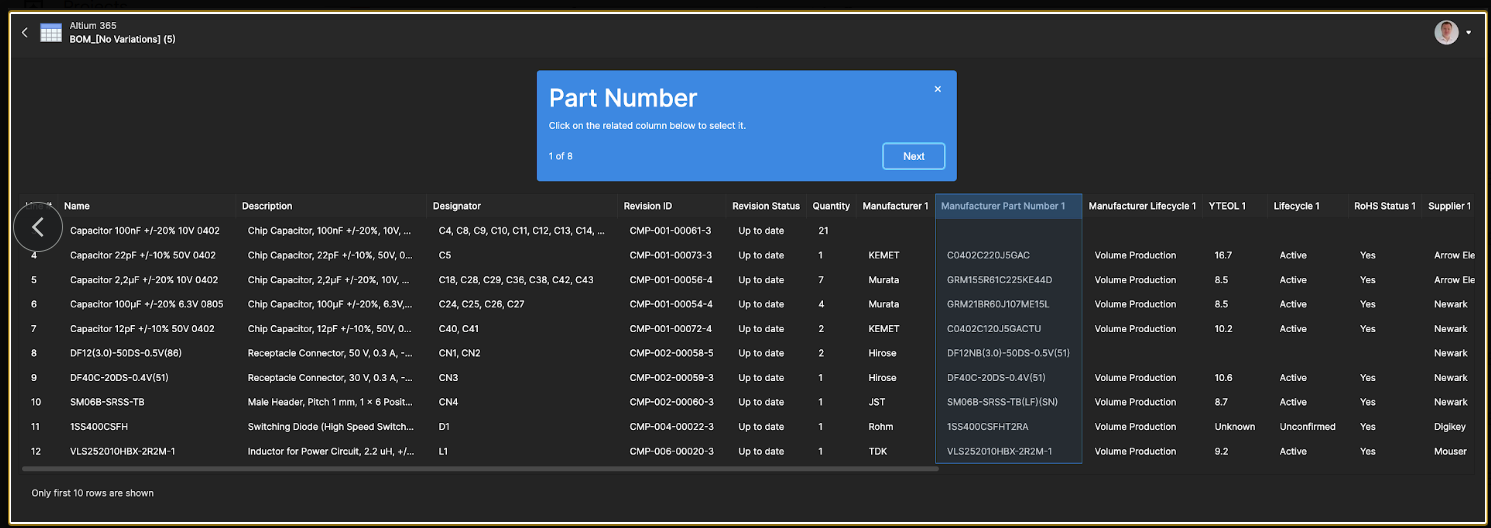
1. Prepare your file. Your file needs at minimum a Manufacturer Part Number column. The quantity defaults to 1 if not provided. Common column names like Manufacturer name and Part Number are auto-mapped.
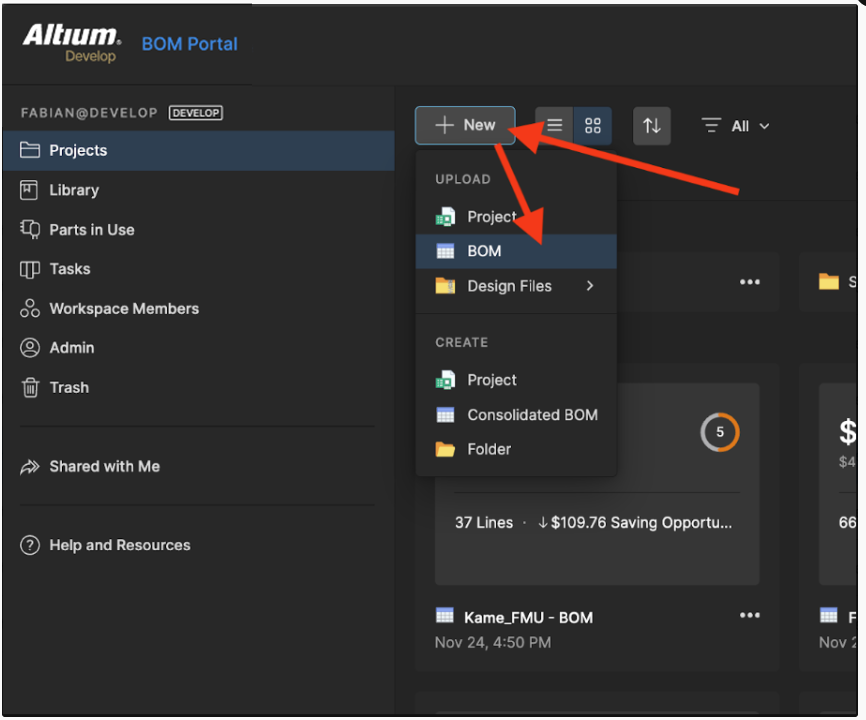
Upload an existing BOM through the Workspace menu
2. Upload and map. Click Create → Upload BOM File. Review the column mapping and confirm. If a column was not mapped correctly, select the correct one and continue. Optional columns can be skipped.
Column mapping so BOM Portal understands your BOM data correctly